
How do I configure a reading type/view to capture data on Joyn O&G??
The below steps need to be followed for creating a reading and making it available on the pumper app for data capture
Create a reading type and provide the basic configurations for the same
Add attributes to the reading type
Create one or more reading-views which allows a Admin to apply advanced configurations/ filters on the attributes of the reading-type.
Assign the reading-views to specific “teams” through “team-views”
Create a reading type and provide the basic configurations for the same
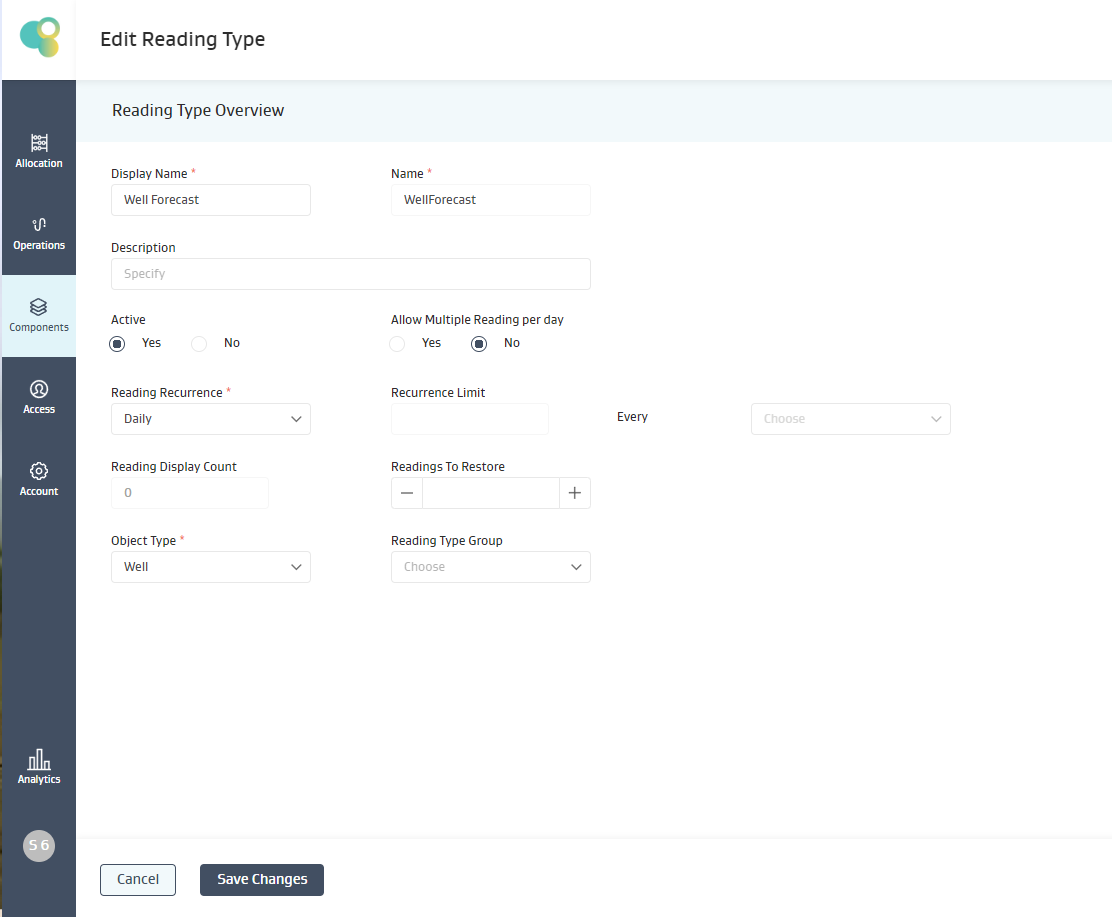
DisplayName: Display name is used to provide an easy to consume/recall name to the reading type.
Name: This is the name of the reading object which is saved in the Database. It is also referred to as EntityName. When the user wishes to use any attribute of a reading in the formula they would use [Readintype-Name][ReadingAttribute-Name].
Description: User can add a brief description of the purpose of the reading here.
Active: This would determine if the reading is going to be available to access and upload/capture data on in the mobile app, admin web-app
Allow Multiple Readings per day : This is used to determine if one or more readings are allowed to be saved for an object per day. This is typically used in cases where there are multiple readings such as run-tickets, flare-events, etc whose data needs to be captured multiple times in a day.
Reading Recurrence: Three different settings are used
As Required- These are infrequent readings used as event readings, which are coupled with an underlying base readings such as runtickets, welltests etc. These are specifically setup if the PAs intent is to have any interdependent calculation between an event and a daily reading such as runticket<>tankreading.
As Required - Infrequent: Mostly used in the context of an event reading which is not tagged onto a base reading.
Daily: Daily readings where the expectation is that reading exists for every date. Used for readings such as wellreadings, tankreadings, meterreadings. etc.
Readings Recurrence Limit:
In the case of infrequent readings, the admins can defined the cadence for a reading.
This is only allowed for As Required (-Infrequent) readings which are not allowed to be “multiple readings per day”
Readings Display Count:
If the user is using JoynOG native iOS application, then this setting is utilized to determine number of readings visible in the mobile application
Readings to Restore:
This setting is used to determine number of readings outside the restore-window which are fetched in the mobile application. The restore window is
30 days for Joyn O&G OneApp
14 days for Joyn Oil & Gas Production ( Native iOS app used by legacy Joyn users)
If the “Readings to restore” is set to 5, then the app would restore 30+5, 35 readings for a daily reading and atleast 5 additional readings outside the 30 day window for event readings such as runtickets and welltests.
Object Type: This is used to determine, which object types amongst ( well, tank, meter, equipment) will this readings be assigned to. For now, a reading can be made available on only one object-type.
Object Subtypes: Within the object type selected, if the user wants to limit the reading to be made available for datacapture only on specific subtypes of an object such as ( Gas sales meter, Oil Lact meter, VRU meter, Flare Meter) then the appropriate object subtypes may be selected here
Note: The same object subtype filter exists on the “Reading View” too. The user needs to ensure that object subtype option selected in the Reading-view setup should be also selected from the list of object-subtypes in the Reading-Type selection. Only object subtypes selected in both the places would be where the specific reading-view would be seen.
Suggestion: Do not make any selection for object subtype at the “Reading-Type” setup. All such filters can be explicitly managed in one place in the reading-view object subtype filters.
Add attributes to the reading type
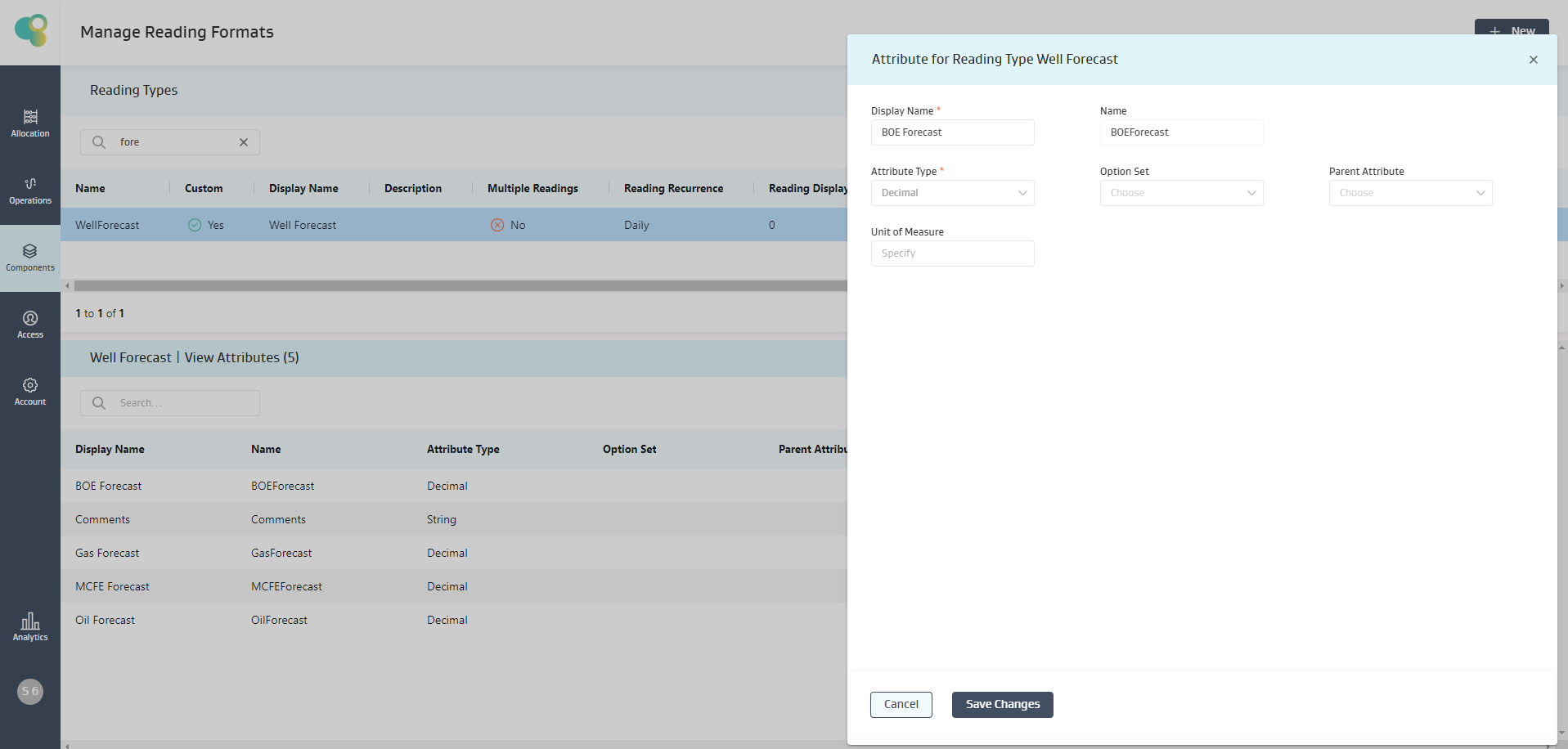
Attribute Type: User can create attributes of different datatypes. The currently supported datatypes are
Integer
Decimal
Boolean
Picklist
Time
Date
Button
String
Text Area
Option Set: If the user has configured the attribute as a “picklist” attribute then, the user can select the picklist option set, belonging to which the options belong to
Units of Measure: For time attribute when the units of measure is set to “seconds” then the time attribute would show up in hours format in the OneApp and Admin. If not, the time attribute would show up as an integer and the data entered is considered to be entered in seconds.
Creating and Configuring Reading views
Each reading type can now have one or more reading views associated with them.
The whole idea of a reading view originates from the need to be able to save the data to the same entity, but setup different calculations, filters, validations on attributes depending on the requirements in the field and the constraints and configurations sought by the PA team.
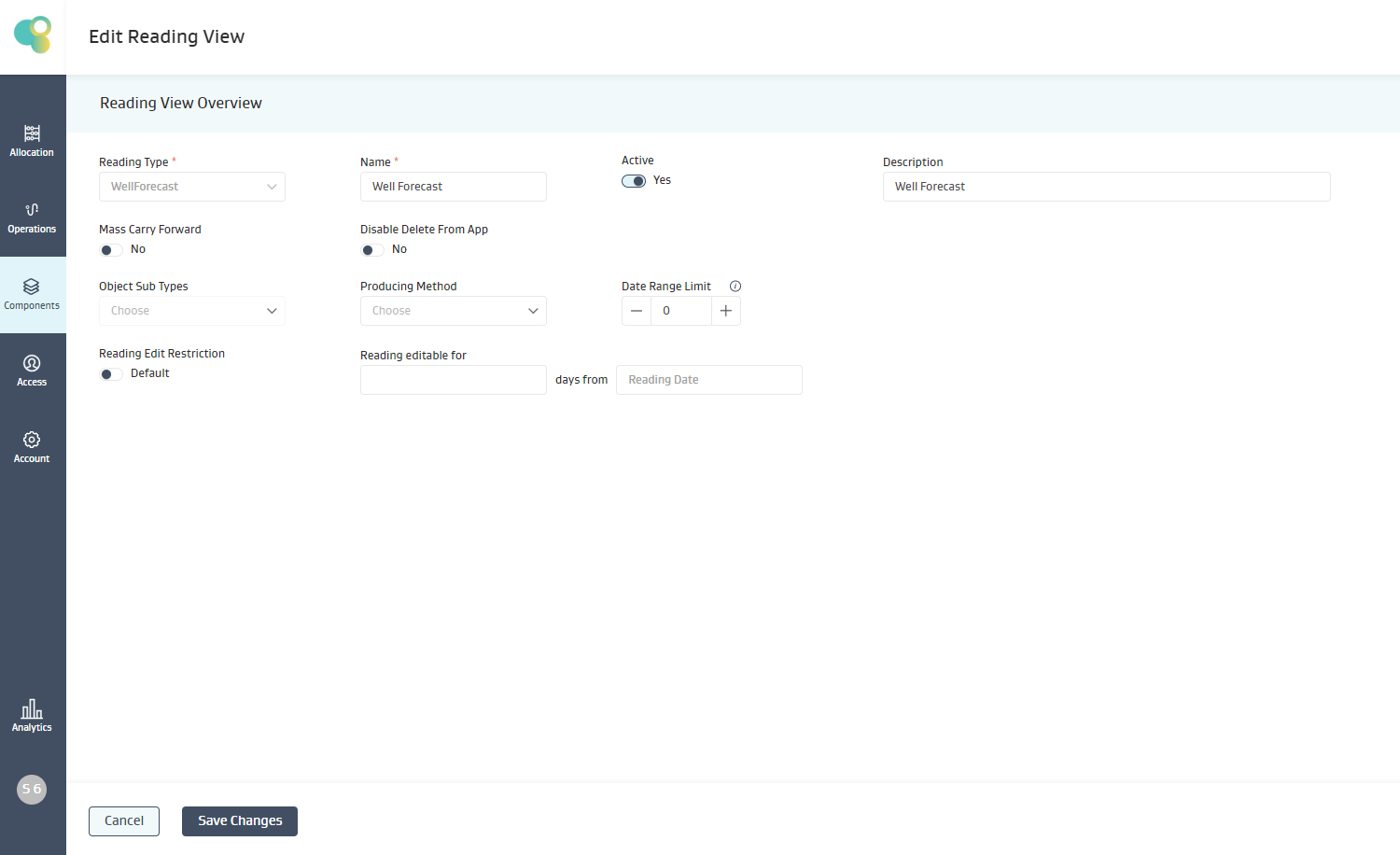
Name: This is the “Display Name” which the user would see for the reading-view in the pumper application and the Admin Web-app.
Active: Only readings which are active are shown in the pumper and the Admin applications.
MassCarryForward: If enabled, when a MassCarryForward process is triggered, this would ensure that this reading, if mapped to an object, will be created if no other readings exists for the date. The attribute values populated in the reading are determined by the carryforward configuration setup in the reading.
Disable Delete From App: If this selected, then the pumper using OneApp will not be able to delete any reading of this reading-view on the OneApp.
Object Subtype: Filter used to show the reading-view on objects of specific subtype.
Producing Status: An additional filter used for well readings, to only show the readings for the wells which have the producing status matching the value selected for the filter. Only one value for producing status can be selected for each well reading-view.
Date Range Limit: This limits the number of days which are selectable on the calendar, when pumper is selecting a date value for date attribute on a reading
0= No restrictions on date selection. Only current date or prior dates are selectable.
1 = Only current date is selectable in the date calendar
2= Current date and past 1 days is selectable
n= Current date and (n-1) of past dates are selectable.
Edit Restriction: If enabled, this would allow configuration for setting up edit restriction of two types on a reading view
Date Range : Admin can configure how many dates( by reading date) into the past from the current-date, the readings are editable.
Example: If selected as 14 for a daily well reading, then on a date 20th Sep, 2023 then pumper would be able to daily well readings only upto 6th Sep, 2023.
Date Attribute: By default the restriction is enforced taking the “Reading date” into consideration. In some cases, the reading-view may have other date attributes such as “production date”, “end downtime date”, “ seal on date” etc, and the Admin may want to use these date values to incorporate a restriction on editing a reading.
Example: If edit daterange is set to “14 days” and the attribute is “end downtime date” for a downtime event reading. Then on the date of 20th September, the pumper would be able to edit all the downtime event readings which have “enddowntime date value” set to 6th Sep or a later date.
Configuring Attributes in a Reading View.
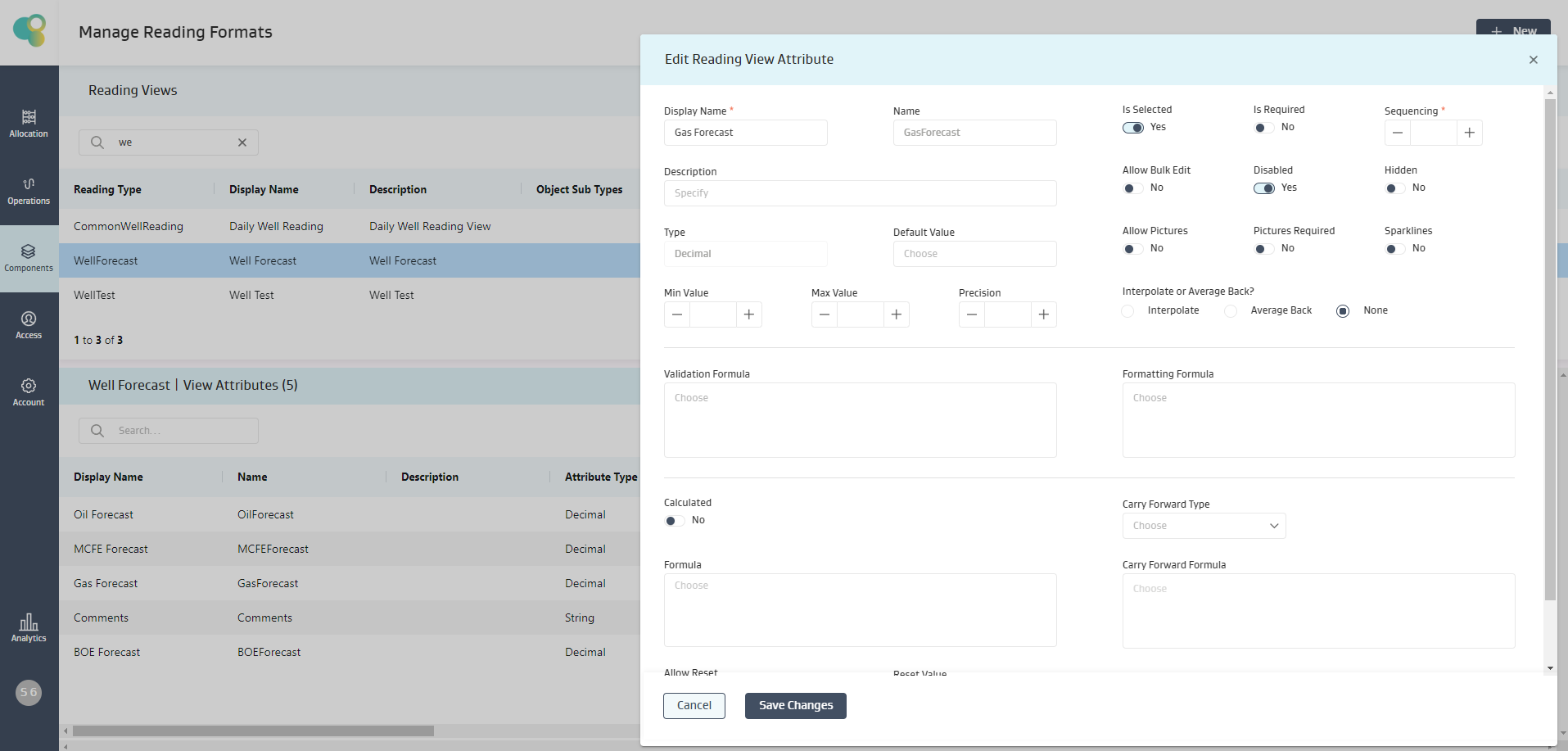
Display Name: This the name the OneApp or the Web-Admin user would see for the attribute in their applications.
Type: Attribute type, this is already determined for the attribute in the attribute configuration for the readingtype.
Default Value: Admin can setup a default value assigned to the attribute when a reading is created and the user does not enter a value for this attribute. This is currently supported for date, integer, decimal, boolean, picklist attributes.
Min/Max value: For integer and decimal attributes the Admin can setup the min/max range of valid data for the attribute.
Precision: In the case of decimal attributes, this setting is used to determine the precision with which data is shown in the OneApp and Admin WebApp.
Is Selected: When enabled, this means the attribute is selected and used in the reading view. Only when selected the attribute and its details are available for the Web-Admin or the OneApp application to use during data entry.
Is Required: This if selected, treats this attribute as a mandatory attribute and blocks the user from the reading without entering a valid value for this attribute.
Sequencing: This value determines the order in which the attributes are shown in the OneApp and the Web-Admin App
Allow Bulk Edit: If selected, this attribute would be available for data entry during the bulk edit flow. This means the attribute can be edited and saved across readings of multiple objects at once.
Disabled : If selected ,the attribute would be in a disabled state and the value cannot be edited by the user.
Hidden: If selected, this attribute would be available in the reading-view but now visible in the UI on OneApp and the Web-Admin.
Allow Pictures: This allows the users on the OneApp to capture pictures against an attribute for a readings view.
Interpolate or Average Back: In the case of decimal attributes, the Admin can configured the attribute in such a way that “when the pumper clicks interpolation” on the attribute in OneApp the values between current manual data and previous available manual data are re-calculated through interpolation and populated in the readings between current date and the previous date for which a manual data is available for the reading on an object.
Example : This is used in the scenarios where pumpers are visiting the wellsites infrequently but want to ensure that the tank readings are created for everydate with gauge values and gauge volumes generated through interpolation.
Validation Formula: The Admin can setup a formula to ensure “data sanity” is maintained when a user enters data and saves the same.
Carryforward Formula : This formula determines what value is populated for the attribute when the reading is created through MassCarryforward or through other carryforward actions.
Calculation Formulas : This formula is used to calculate the value to populate/save for the attribute when a reading is created, edited and saved.