How do I Create/Add a new user?
Admin ( with Edit access to Access/User) can add a new user in Joyn O&G and also set the password for the user.
The following pre-requisites/ details to be checked.,
User does not have O365 (Azure AD) login enabled for the email-ID
If the user has O365 login, then they can login into Joyn O&G application as soon as the user invite is completed.
To add a user, the Admin will first have to get a unique email-ID for the user.
It is always good to get an email-ID with access to the mail-box, since the any password reset attempted by the user in the future would send a reset-code to the email-ID of the user.
The user should not have already been added to a different account in Joyn O&G.
Contact WEnergy Support, if you see an error of “user already exists in another account”.
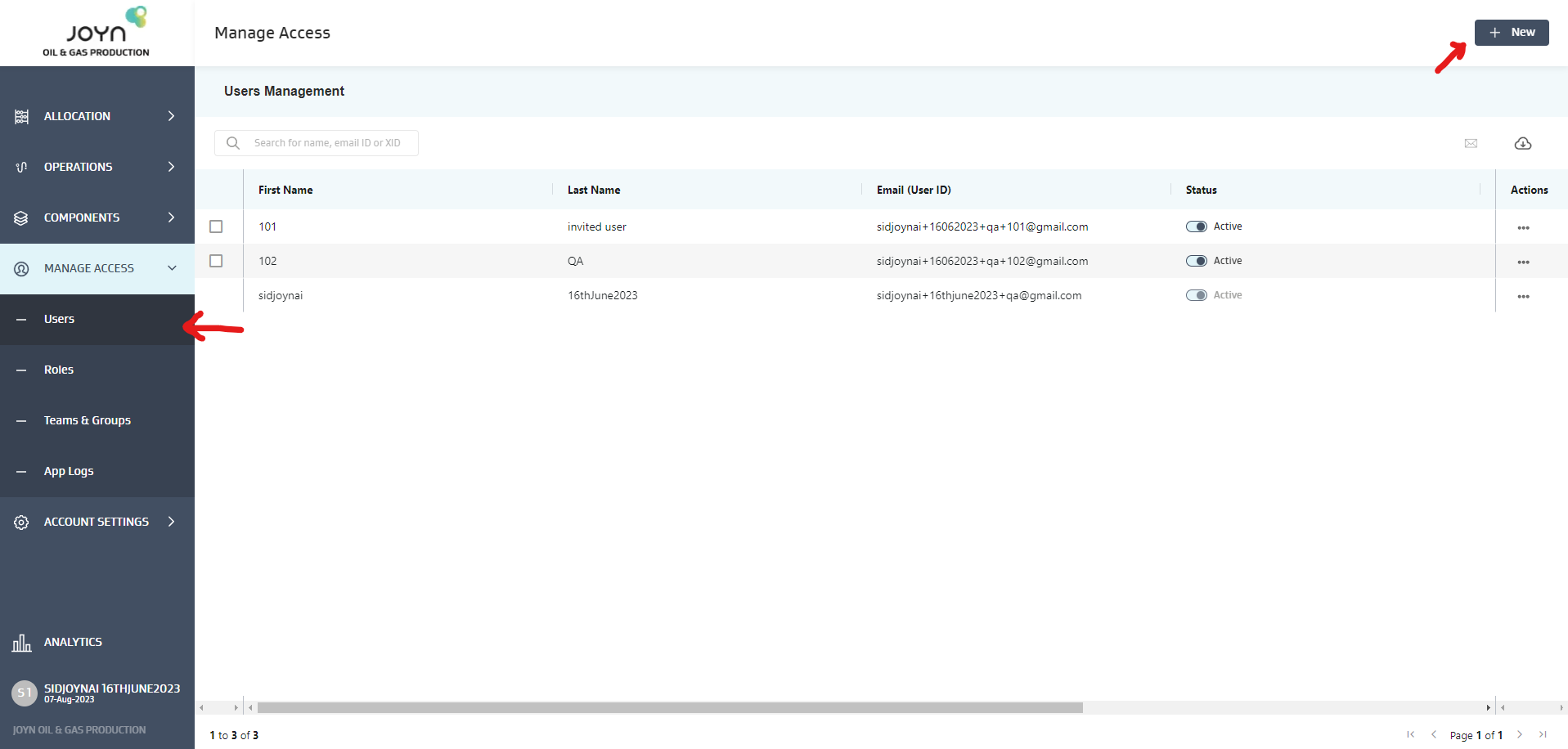
1. Navigate to “Manage Access/ Users“ and click New to add users to Joyn O&G.
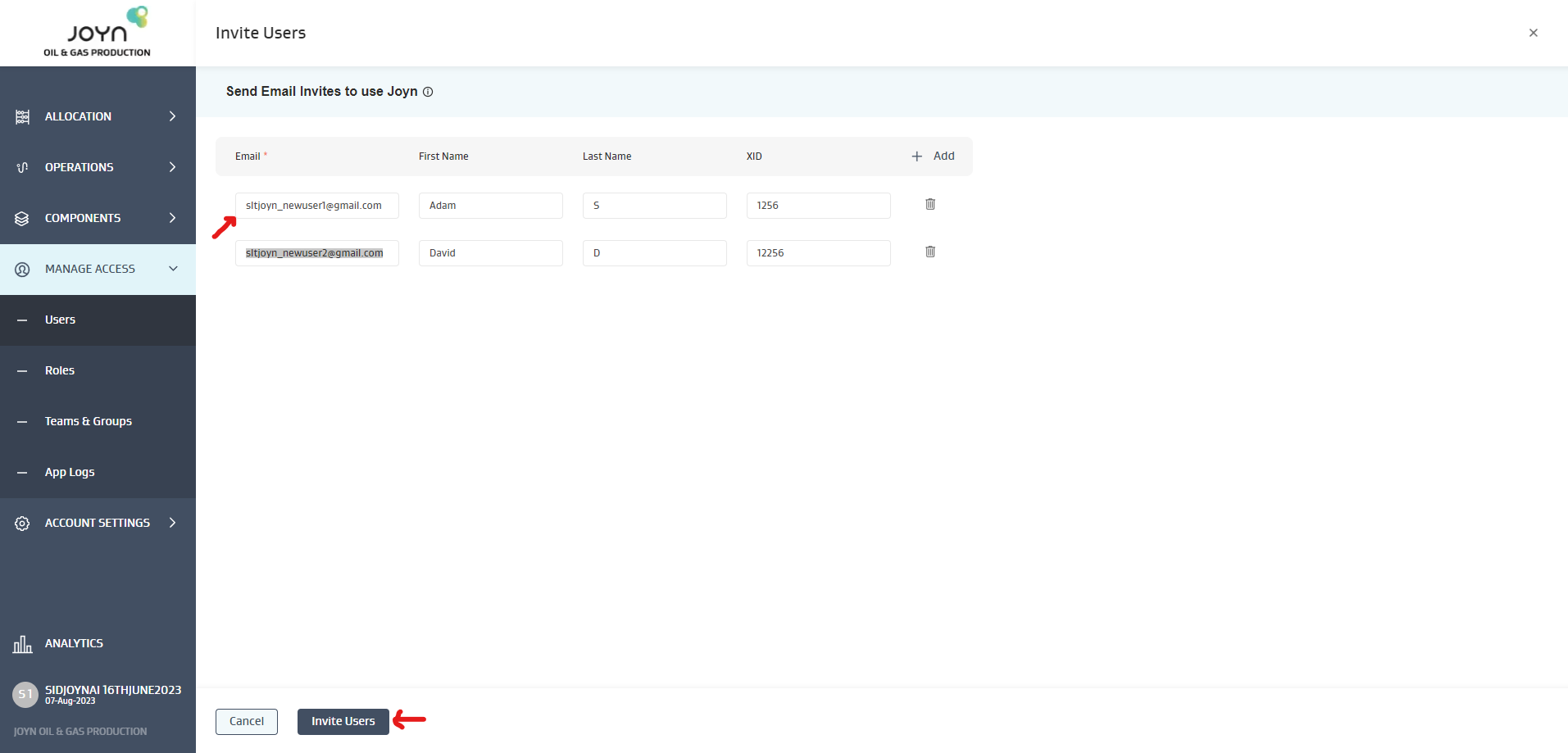
2. Fill in the details of users you wish to add
Email-ID is mandatory. Please ensure you fill in the XID details if you have integration setup to a different system, where XID can be used as a integration-key.
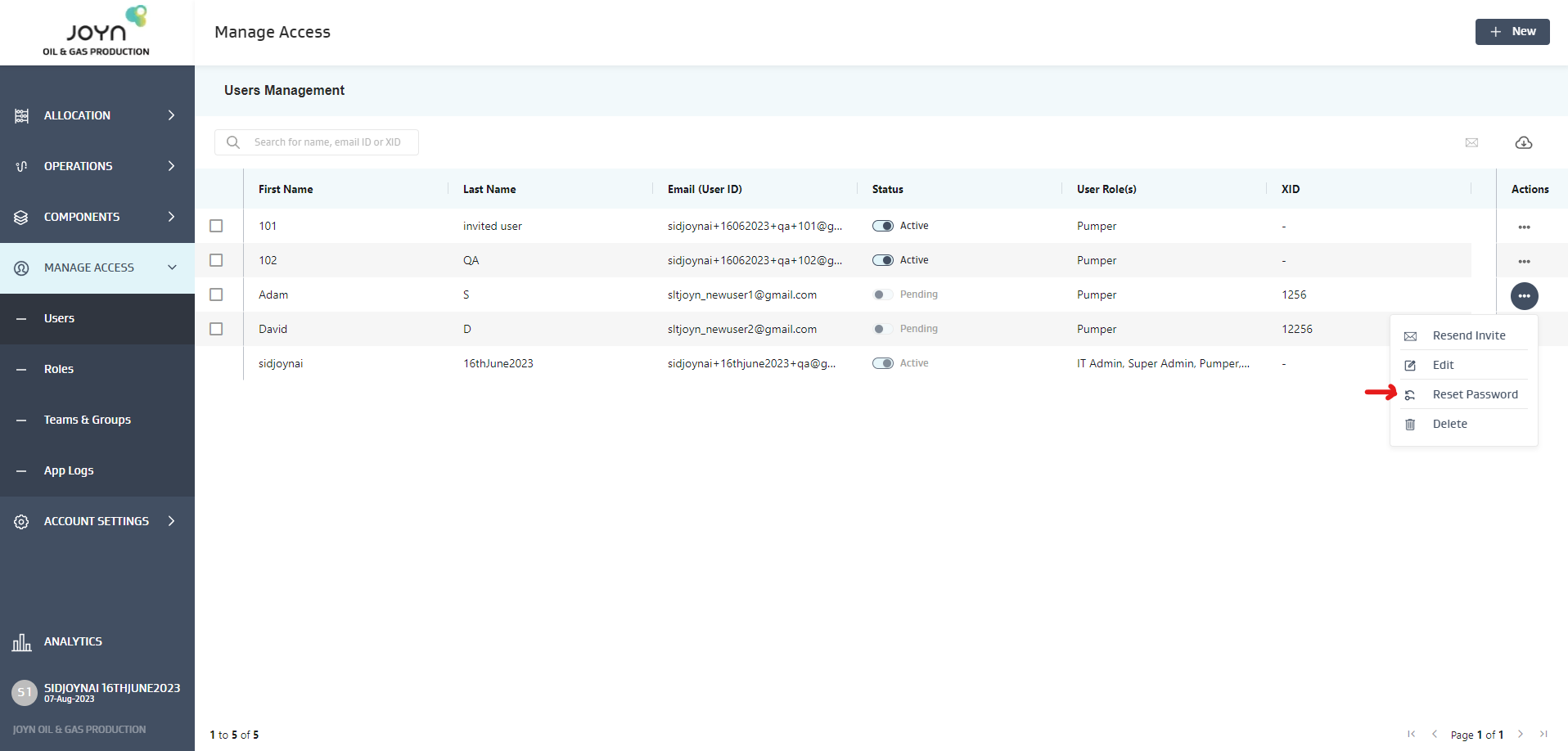
3. Select the “Actions/ reset password”, to set the password for the users invited.
Joyn O&G allows the admin to not wait for the users to accept the invitation and signup to use the JoynOG application. Instead, the admin can “set the password” for the user and share the same with them directly.
This would change the user status from “pending” to “Active” and the user can start using the application ( web, Mobile) to login and start using Joyn O&G
4. Select “Auto generate password” or “ Create passwords manually” for the user.
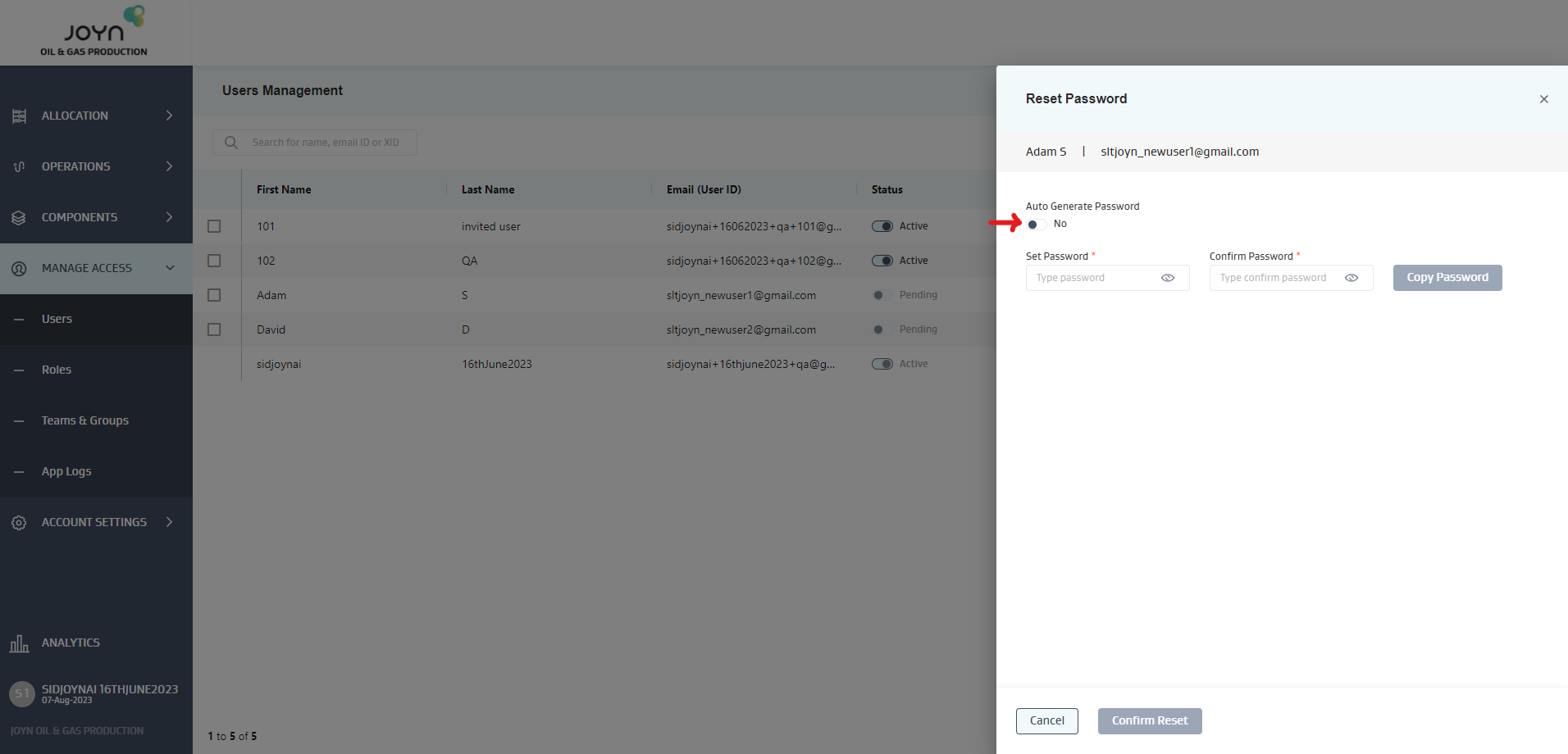
5. Copy the password and share it with the user along with email-ID which the user should use for Login.
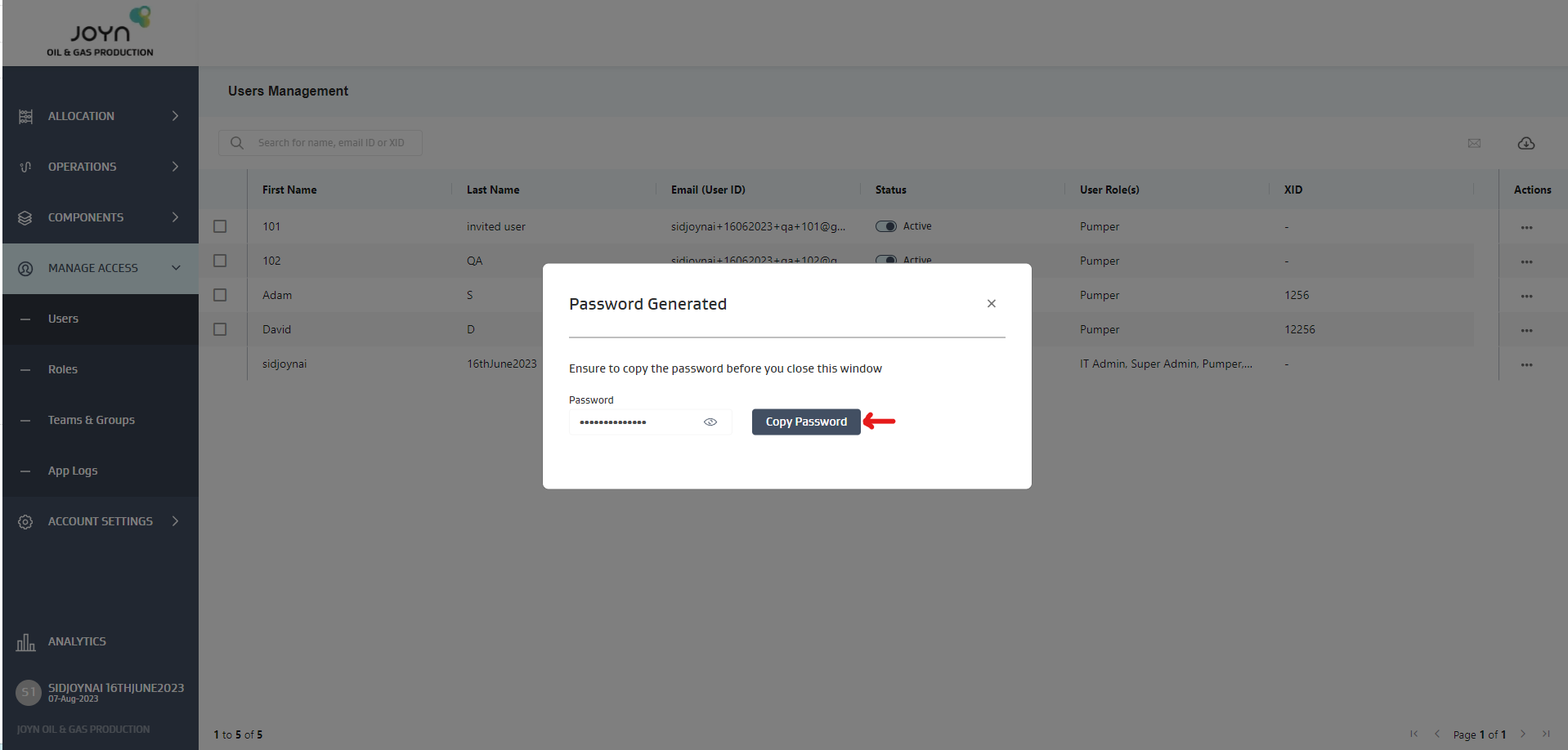
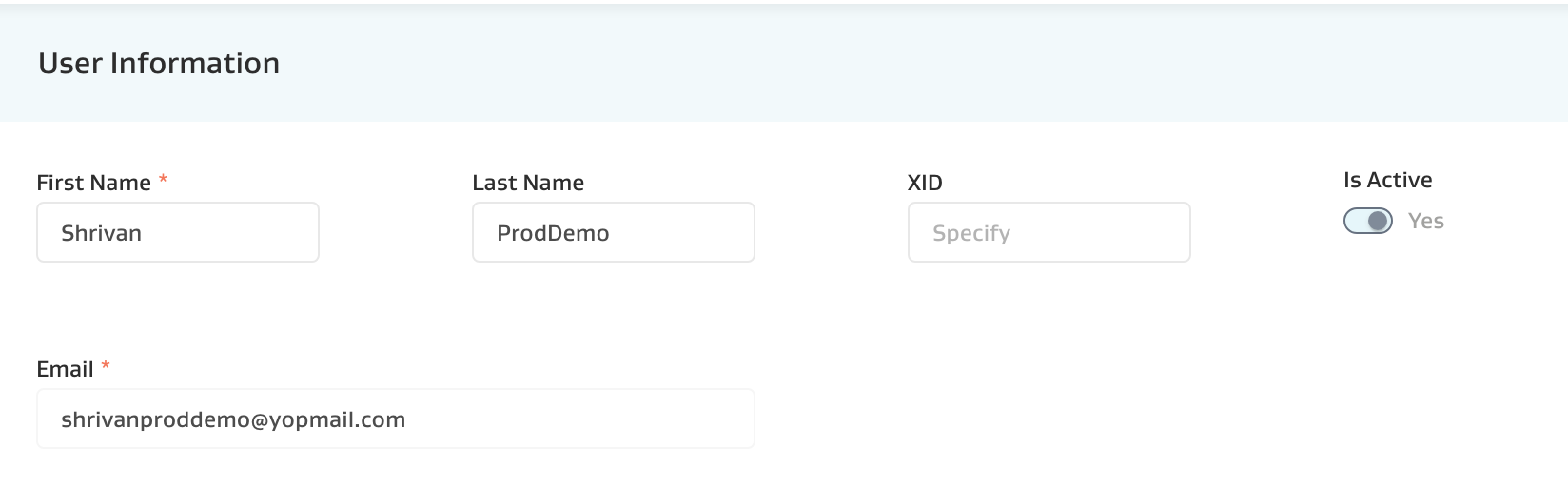
6. Update User Profile and Access (Including FSM Access)
Update Name, XID, Active Status and email
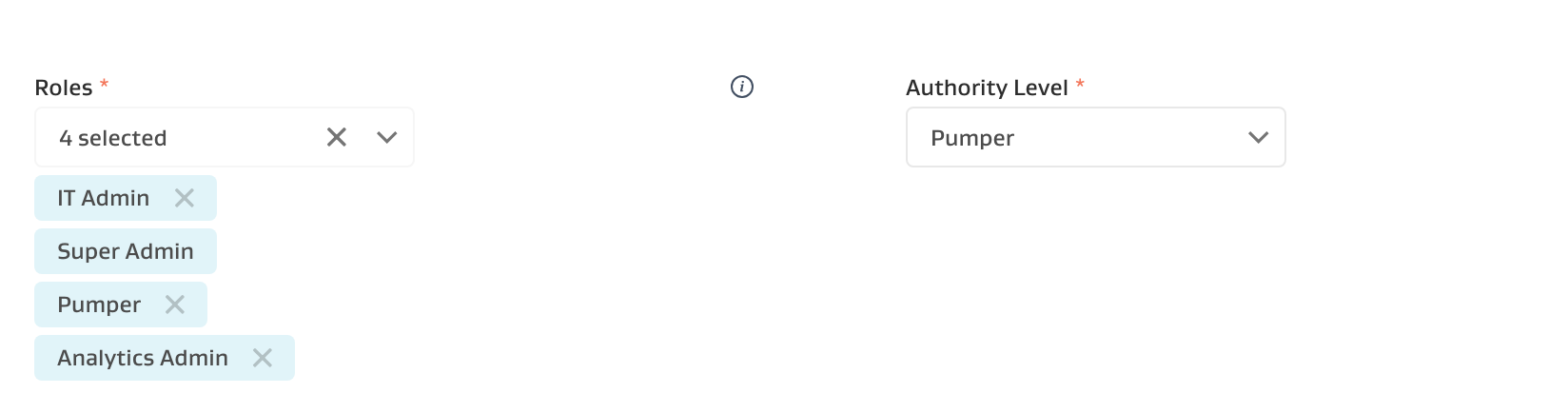
Select a role depending on the module access required and the FDG Authority Level.
For more information on roles - see FAQ on JOYN OG FDG Role Mgmt.
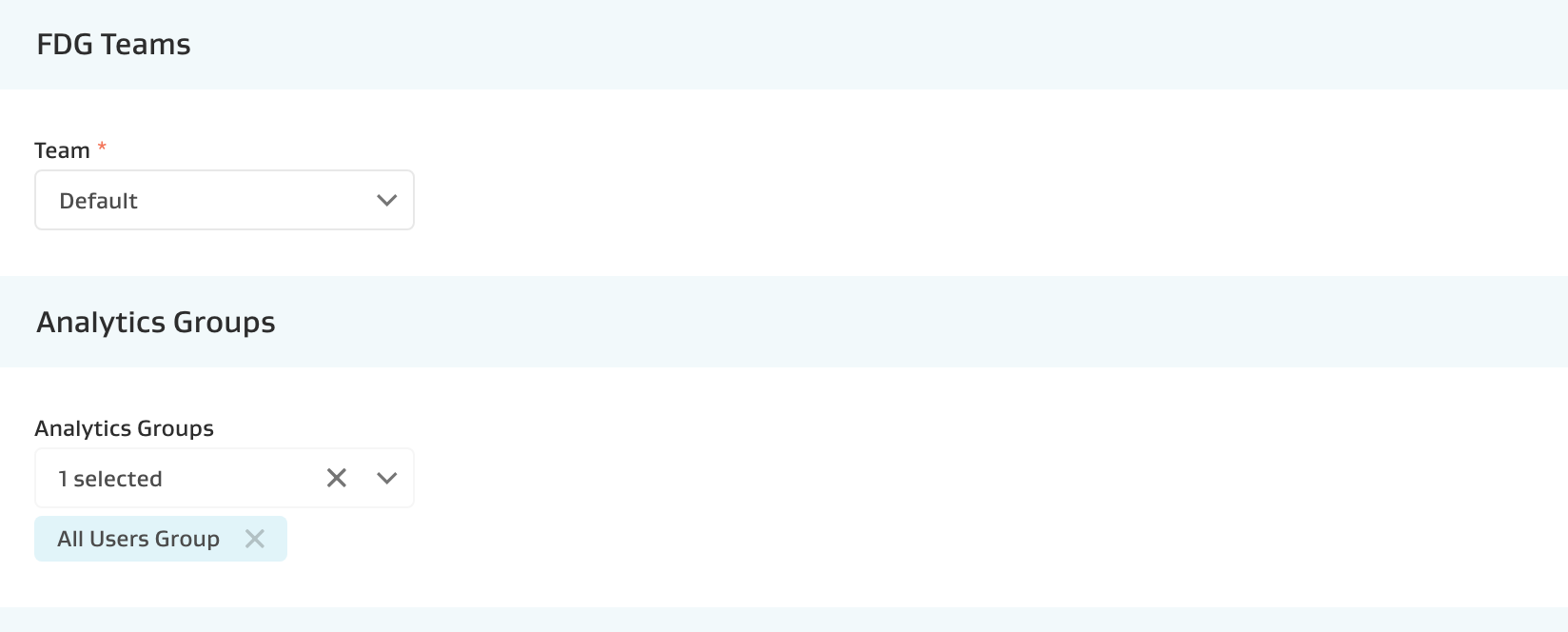
Select the FDG Team and Analytics Groups
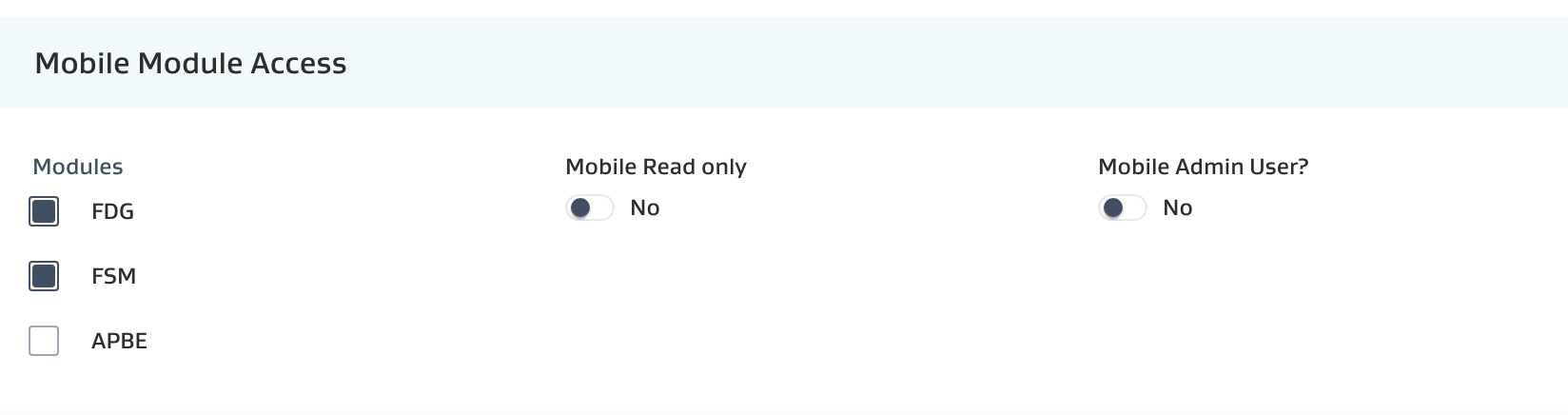
Select Mobile Module Access
Select FDG for FDG Mobile Access
Select Mobile Read Only for FDG Read Only Mobile Access
Select Mobile Admin User for Mobile Admin Access
Select FSM for FSM Mobile Access
Select APBE for APBE Mobile Access