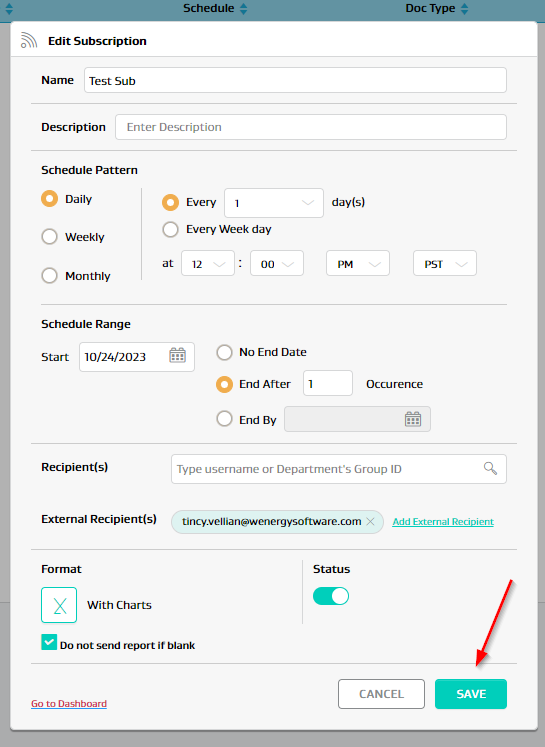
How do I update my Analytics report subscriptions
Sometimes subscription criteria may need to change for a subscription. This could include updating the subscription (i.e. schedule or recipients) or the criteria of the report.
For existing subscriptions, users can update their subscriptions following these below.
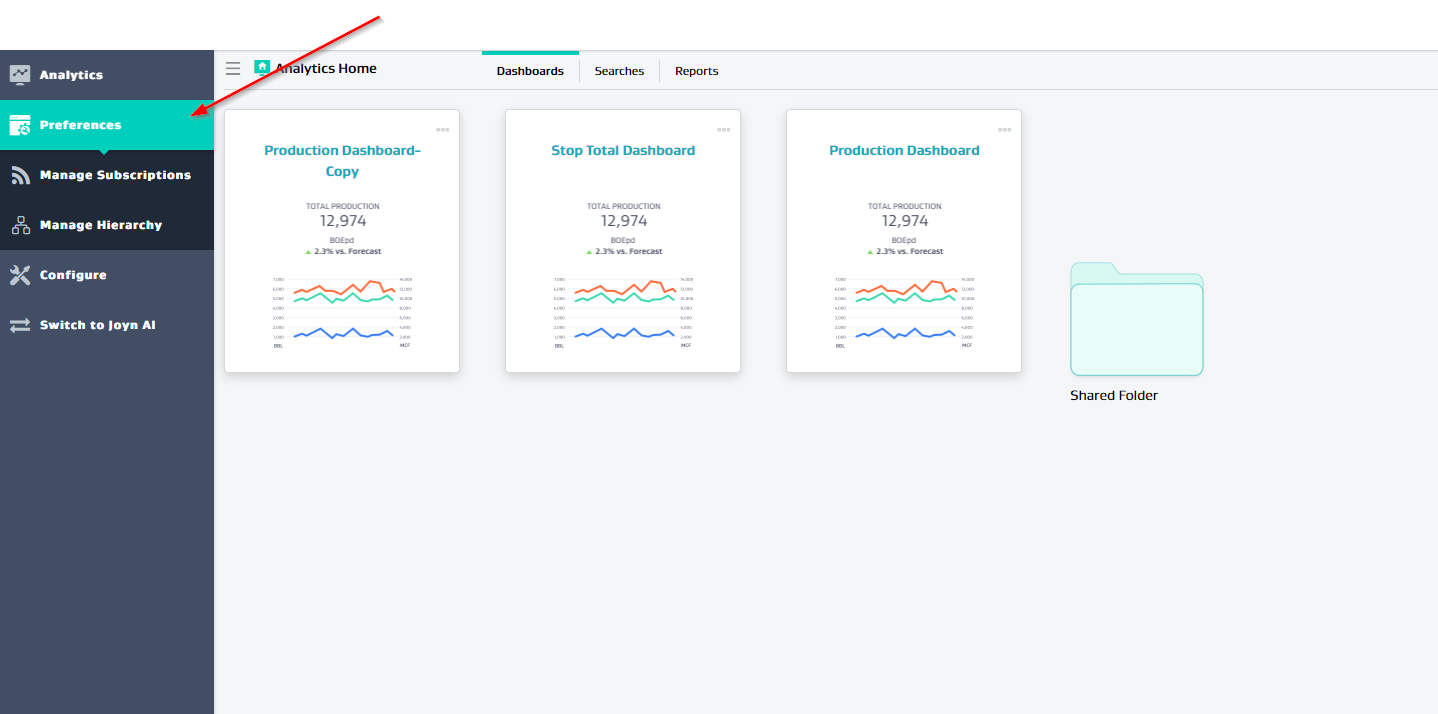
To access existing subscriptions, Go to Preferences-> Manage Subscriptions within Analytics
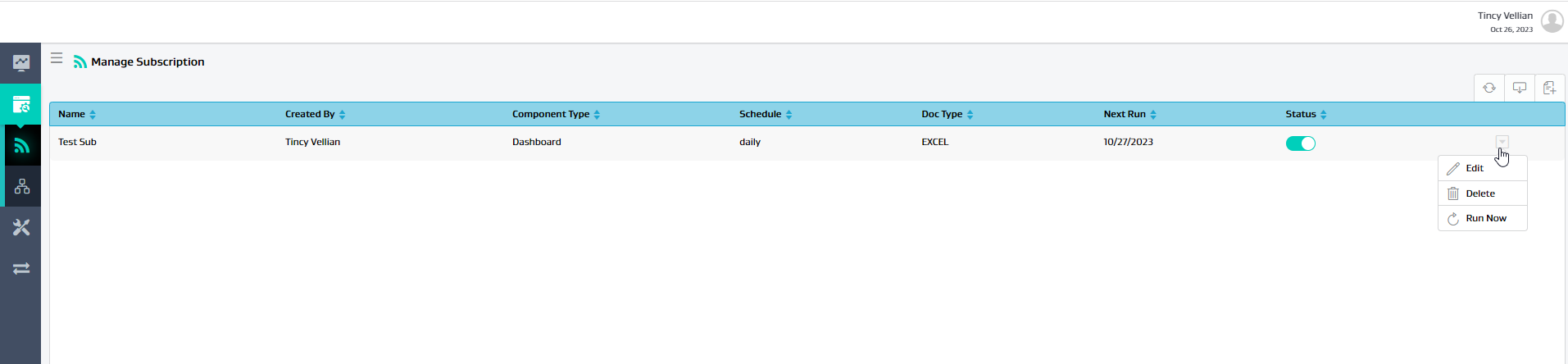
Find the subscription you would like to update. Click on the arrow to the right of the subscription and click edit.
This will open up a window with the existing subscription criteria. If you want to just update the subcription criteria (i,e schedule pattern, schedule range, recipient(s), external recipient(s) and/or format, this can be done here and then click Save
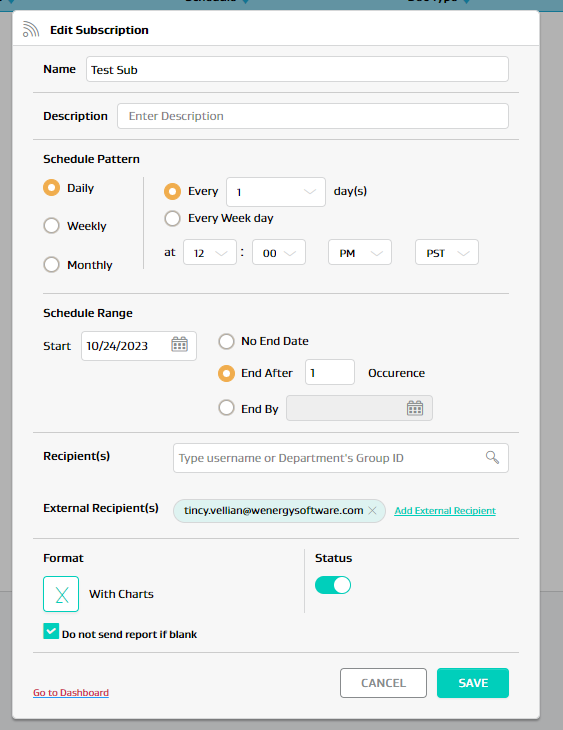
If you want to edit the report/dashboard criteria, then click on the Go to Dashboard link. This will take you to the report/dashboard that is associated to this subscription.
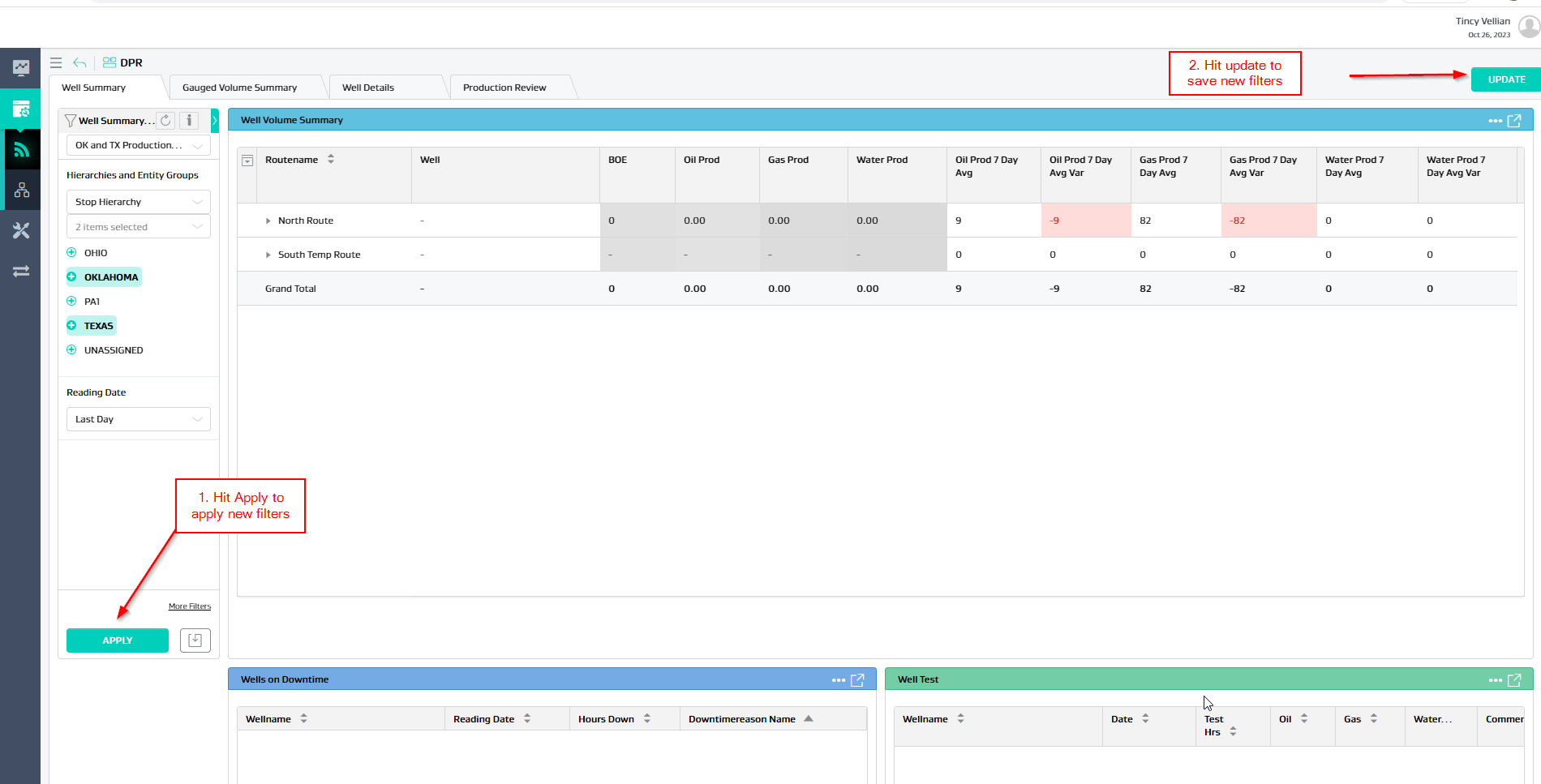
Make the necessary report criteria changes (i.e. filter changes), hit apply and then hit the update button.
This will take you back to the subscription window. Make any subscription changes and hit Save.
Note
You only need to go to Dashboard/Report if report criteria changes are needed. If only subscription setting changes are only needed, then no need to update report/dashboard.
If both subscription and report criteria changes are needed, first update report/dashboard criteria then subscription setting then hit Save.