
Why can't I see a task? or Why is there no assignee available? Why are assets failing to load? - Troubleshooting
There are multiple reasons you may not be able to view a created task or not be able to assign a given task. Here are some troubleshooting tips to help you figure out the issue:
# | Symptom | Potential Root Cause | Verify Root Cause | Remedy |
|---|---|---|---|---|
1 | Unable to see the task that was created | The stop that the task is created on is not in the area that is visible to the admin |
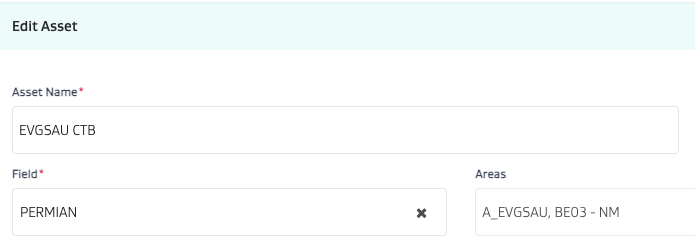 | If the stop is in the incorrect area, you have 2 options:
 2. If your setup consists of static areas, simple go to the Area setup screen and manually add the stop to the correct Area. 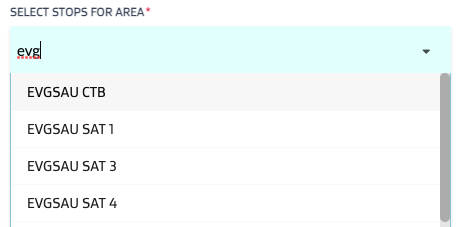 |
2 | Unable to see the task that was created | The stop is in the area but the area or the field is not accessible for the role assigned to the user |
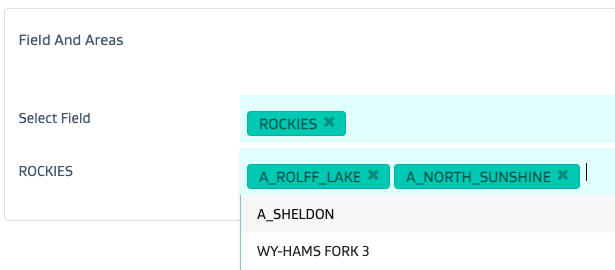 | If the role does not have access to the field/areas - there are 2 options:
2. Or if the user is assigned the incorrect role, go to User mgmt, select the user and update the role to the correct role 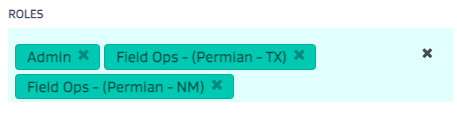 |
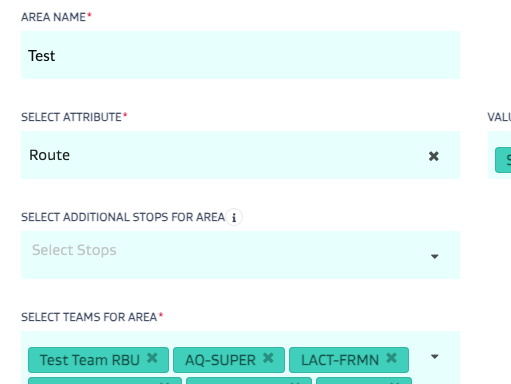
3 | Unable to see the task that was created | Stop, Area, and Field are all accessible but the Team for the task type in question is not mapped to the Area |
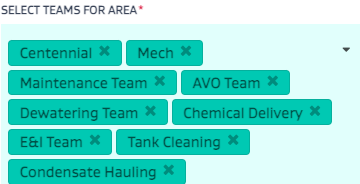 |
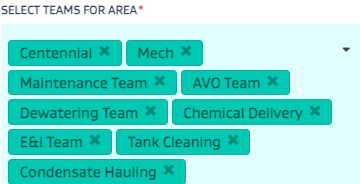 |
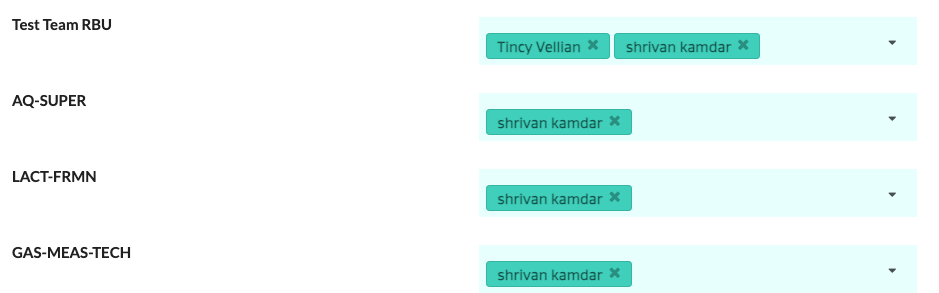
4 | Unable to see the task that was created Or Unable to assign the task | The Stop, Area, and Field are accessible, the Team is mapped but the right user is not mapped to the Team |
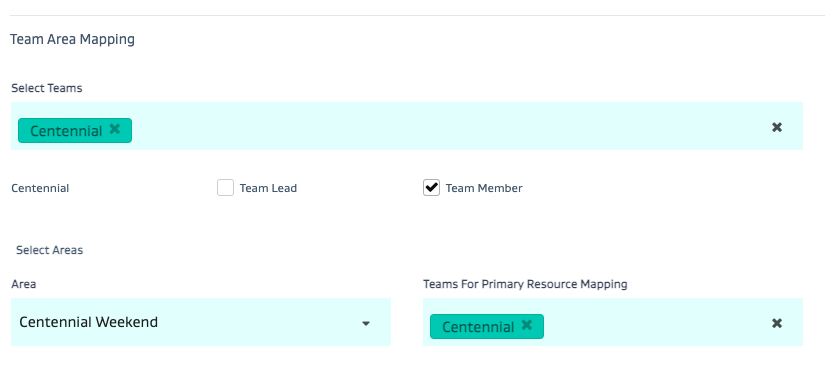 |
|
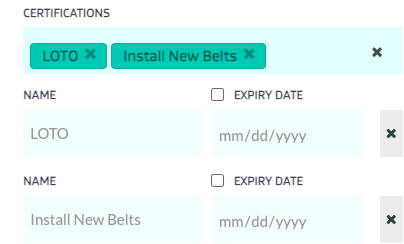
5 | Unable to assign the task | The Stop, Area and Field are accessible, the Team is mapped, the right users are on the team but the user doesn’t have the right certification |
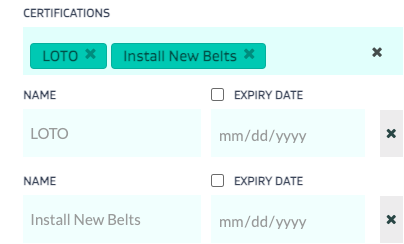 |
 |
6 | Unable to see the task or assign the task | Your web browsing session may have timed out or your login token may have expired | N/A | Refresh the browser OR Logout and Log back in |
7 | Asset Loading Failed - i.e. you go to create a task type and the stop dropdown does not show any stops - in the corner you see a red box that shows an error  | The task type you have selected is mapped to a team. However, that team is not mapped to any areas. Therefore - the system is not able to find any location where the work can be performed. |
  |
|