
Accounts Receivable - Write Off Balances in AR Invoices
When accounts receivable open amounts need to be written off, follow the instructions below to clear the AR Invoice subledger and the general ledger balances to a write off account.
📘 Instructions
Create Credit AR Invoices
Determine the Customers and Current Amounts that need write off entries by using the subledger information under Accounts Receivable>AR Invoices:
As detailed in the instructions below, an AR Invoice per customer will need to be created.

Once Customers and Amounts are verified, click Create New AR Invoice at the top of the AR Invoices screen.

Enter the header information according to Customer, Current Amounts, and Global Setups for your company:
The invoice type will need to allow for receipts to be applied later (JIB Type).
The amount of the invoice total should be negative to offset the current amounts due from the owner.
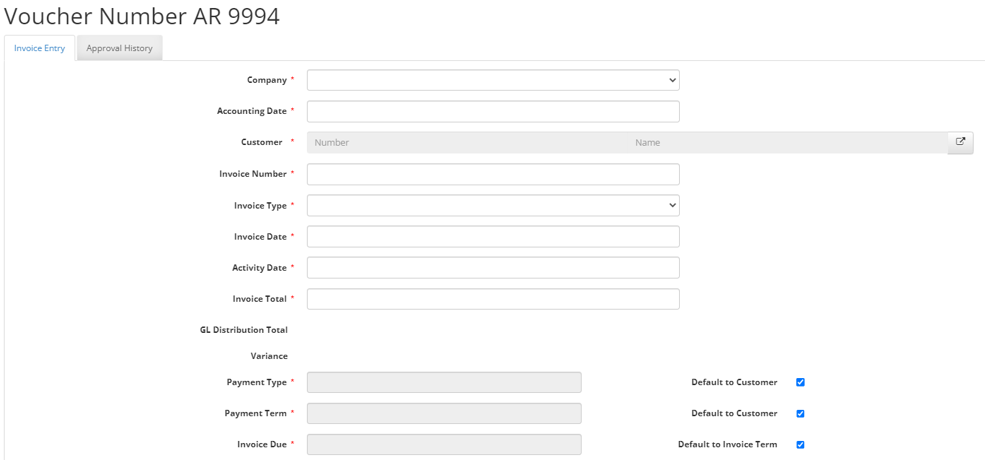
In the GL Distributions, add details for each field desired/required and the write off account as account.
Click Update at the top of the voucher:
If there are errors, work through clearing them.
If there are no error, submit the AR Invoice.
Once the AR Invoice is posted, move to the next steps.
Create Receipt
Under Accounts Receivable>AR Receipts click the New AR Receipt button.

Fill in the header data to correspond with the AR Invoice created:
The payment amount will be $0.00 so the credit invoices created can be applied to the original invoices.
This needs to be applied to AR Invoices so the Receipt Type needs to reflect that.
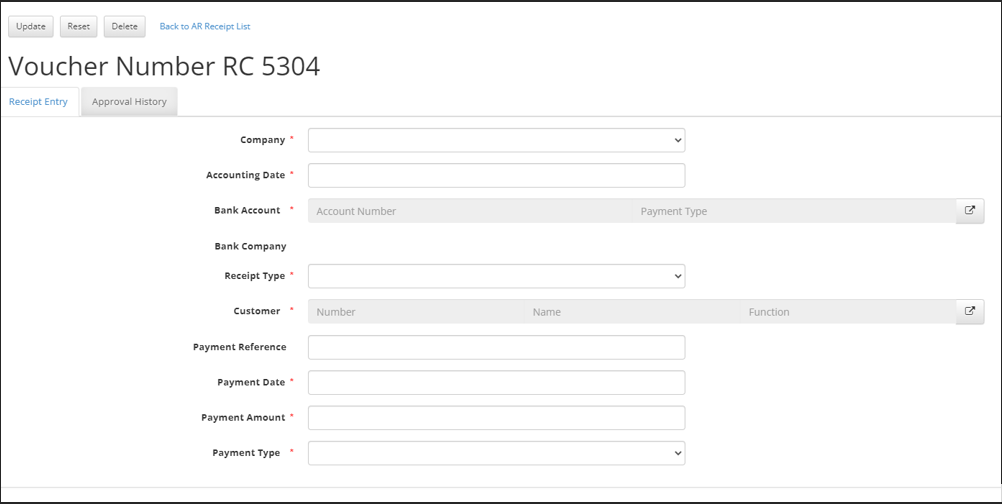
Click update:
If there are errors, work through clearing them.
If there are no errors, submit the receipt voucher.
Once the voucher is posted, move to the next steps.
Create Apply
Under Accounts Receivable>AR Receipts find the $0.00 receipt posted above, select the line and click the apply button at the top of the screen.
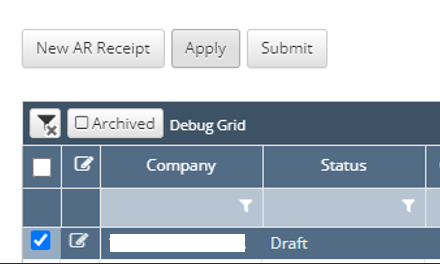
This will create an Apply voucher.
The AR Invoices will pull in every invoice in the AR Invoices screen for the customer number and role function.
Confirm the Amount To Apply column in the AR Invoices grid equals $0.00 in total:
The amount to apply should be $0.00 if all open invoice amounts were written off for the customer number and function.
If all open invoice amounts were not written off, delete any invoice lines that need to be left with a balance by selecting the line and clicking the Delete Selected button.
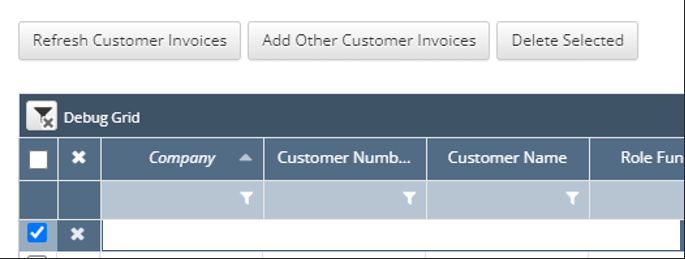
Once the Amount to Apply column totals to $0.00 to match the Amount to Apply header amount, click update:
If there are errors, work through clearing them.
If there are no errors, submit the receipt voucher.
Once the voucher is posted, the general ledger should reflect the balance in the write off account and the original invoice and credit invoices should be marked as a “Paid” status in the AR Invoices screen.