
Upstream Revenue - Asset Process Control PPA
The instructions below outline how to process prior period adjustments in Asset Process Control, referenced as “APC”. This is necessary when purchaser payments, allocations, or calculations change after information has been processed and finalized through Company Process Control.
📘 Instructions
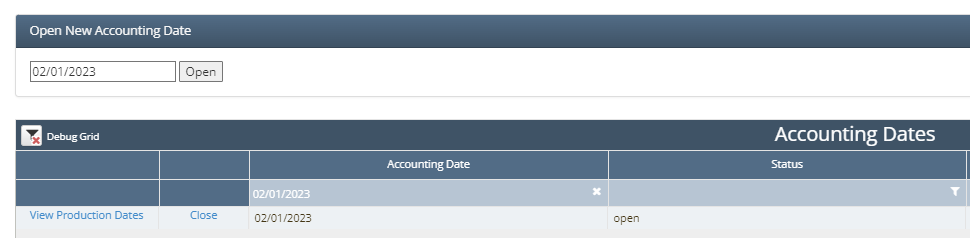
Open Accounting Date for the APC
Upstream Revenue>Asset Process Control>Accounting Date
Open Accounting Date by typing it in the box below and clicking open
Search to see if the date is open already under Accounting date on the grid
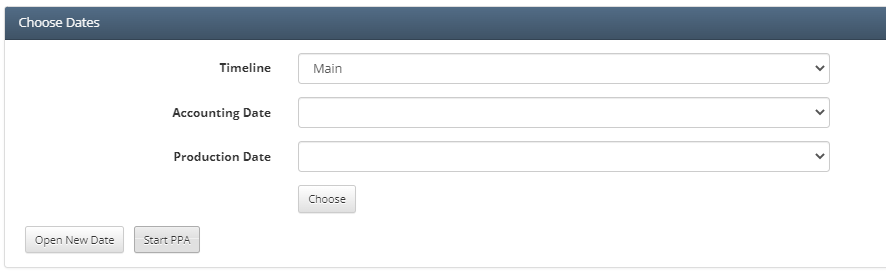
Navigate to Asset Process Control>Process Control
Make sure you are under the Main timeline
If PPA timelines have already been created, the only production dates that will show in later steps are those created under that specific timeline
The Main timeline will have all production dates processed on in the past
Click Start PPA
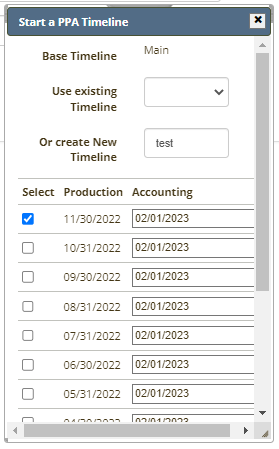
The box below will pop up
Enter a description on “Or Create New Timeline”
This is informational in the accounting results grid and at the top of the APC screen
Check next to the production date updated also make sure to type the accounting date you’d like to use next to the production date.
Note: You can select and process multiple production dates if you need.
Scroll down to the bottom of the Pop Up box and click Create PPA when all information is filled out
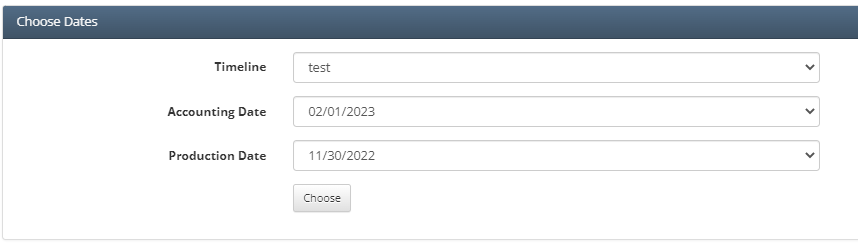
The newly created APC will pop up
The header details will show the Timeline, Accounting Date, and Production Date the steps will be for below
If you clicked on multiple production dates on the steps above, you will need to do the following steps for each production date selected by toggling the Production Date and clicking Choose
A production date file must be uploaded in each APC. This follows the same process as current month processing
Note: The data uploaded must be at a gross detail level, not net payment. The system will reverse 8/8s originally pushed to Accounting Results and rebook the new 8/8s loaded
Choose a template file to upload
Select Frequency
Click Load Previously Allocated Volumes and Analyses
The system will give an error if you try to upload lines that do not have the correct production date on them.
Click Run each APC Step under Revenue Distribution
Go to accounting results and make sure you choose the PPA timeline just created
Once you get to accounting results, make sure all lines total to the amount paid from the purchaser.
There is a column called Selected in the Accounting Results grid, if this is checked it will push through to the Company Process Control
The system will unselect wells based on the PPA Tolerance set under Accounting
Once amounts are tied out, navigate back to the Asset Process Control
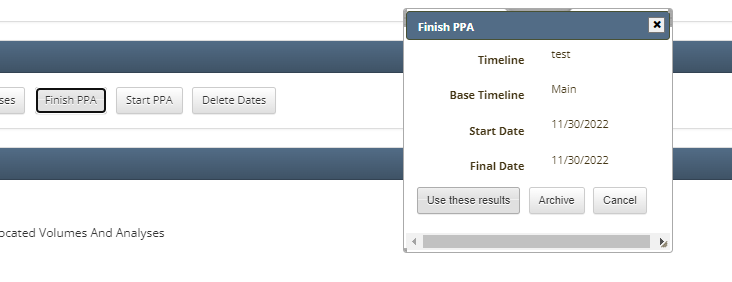
Click Finish PPA
Click Use these results
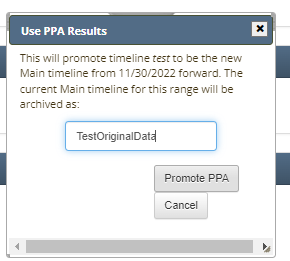
Name your archived timeline
This will rename the last Main Timeline booked to
Click Promote PPA
In order for amounts to be pushed to Company Process Control that are selected in Accounting Results, click the Close Job button
Confirm the amounts pull into the Company Process Control when run

Highlight important information in a panel like this one. To edit this panel's color or style, select one of the options in the menu.