
Upstream Revenue - New Group Setup (Manual and Upload)
Groups can be used when a meter has multiple wells feeding into it. The group can be effective dated for wells coming on and off the meter. The wells will be allocated revenue from the meter based on allocation setups under Asset Setup>Allocation Setup and Global Setup>Allocation Methods.

Prior to Group Setups, New Meter Setups and Adding Well Completion Selections must be completed.
📘 Manually Adding a Group Instructions
Navigate to Physical Setup>Groups
Click New Group at the top of the screen

Once the New Group is clicked, the following screen will pop up
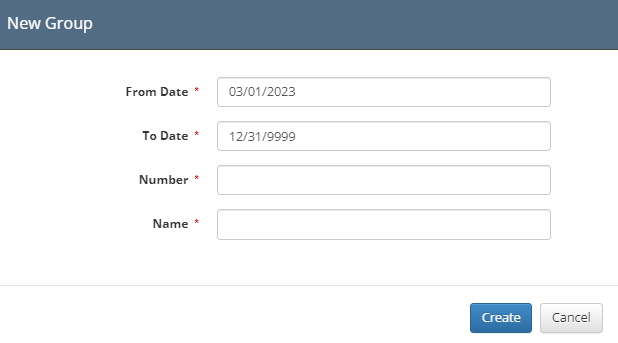
From Date: This should match the meter setup
To Date: This can be left as 12/31/9999 and end dated later if needed -or-
If an end date of the meter is known at setup, add the ending date of the meter.
Data cannot be processed on the group after the end date
Number and Name: Should be something that is easily identifiable the user. Best practice is to use the Meter Number and Name from the purchaser statement.
Click the Create button
The following screen will appear after clicking the Create button
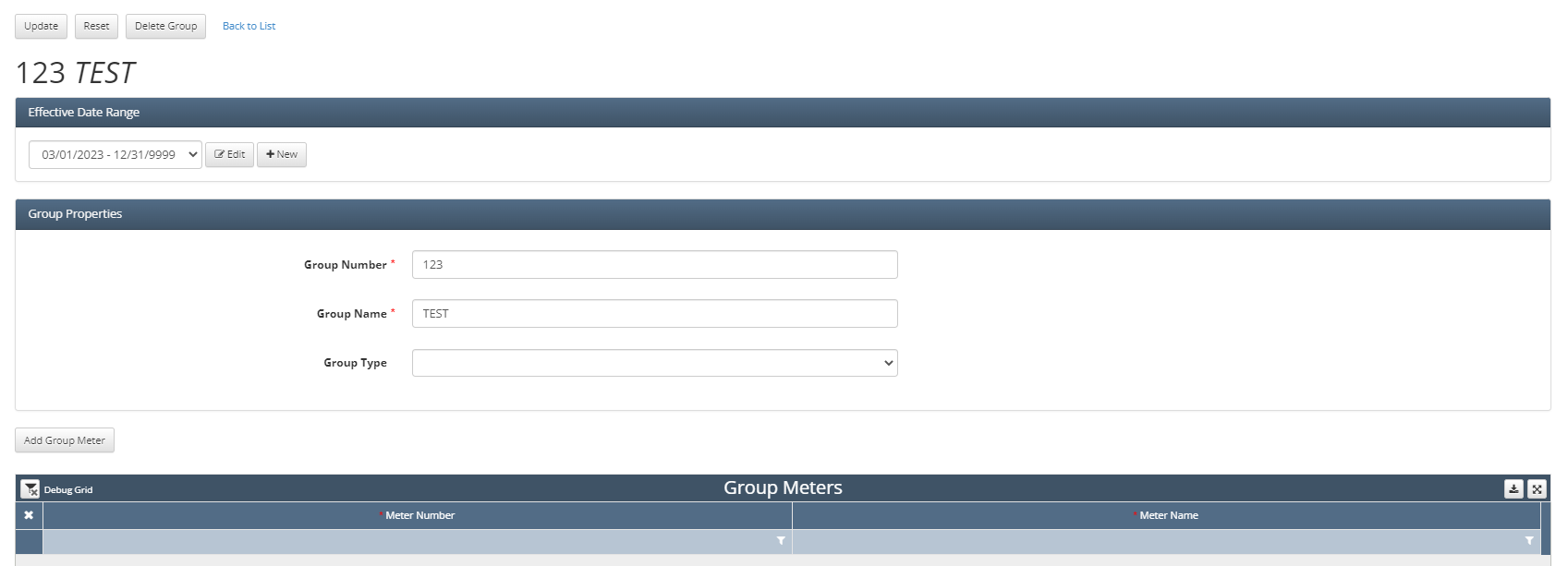
To add wells associated with the meter click Add Group Meter for each well you need to add (ex. click 5 times to add 5 wells)
Once the button is clicked, blank lines will appear at the bottom of the Group Meters grid.

Click in the Meter Number blank box and a picker will appear as shown below
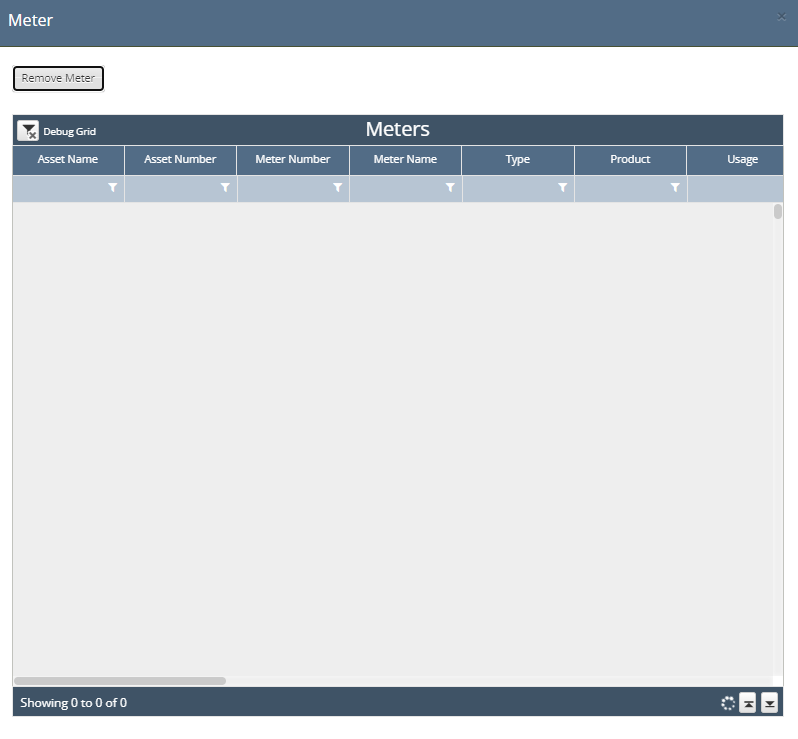
Once the picker loads, search for the Well Number or Meter Number under the Meter Number column, and then click the line of the meter to add it to the Group Meters grid.
Continue this step for each well until all wells and/or meter added
If you cannot find the well in the pick list, please follow the Adding Well Completions Selections to an Asset instructions to add the well into the processing Asset picker list.
There is no validation that a well is only tied to one meter at once. The responsibility is on the user to review allocation results for reasonableness and setup validation.
Click Update at the top of the screen to save changes to the Group setup
Once this record is successfully updated, the Meter and Group will need to be tied together using the New Asset Config Setup instructions.
📘 Group Import Instructions
Navigate to Global Setup>Importers.
Select Group Meter Import from the dropdown box.
Click the link below File Upload to download the most recent template for uploading Group Meters.
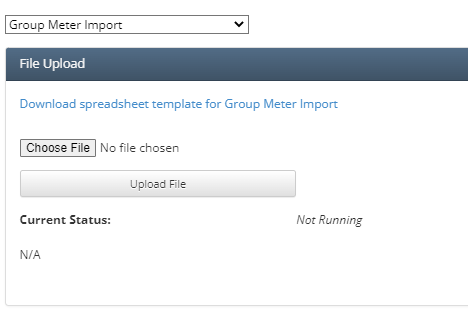
The template will download at the bottom of the browser.
Open the template.
Fill in the fields as follows:
Meter Number: Well Completions Number in Global Setup>Well Completions Master.
Meter Name: Well Completions Name in Global Setup Well Completions Master.
Group Number: Best practice is Meter Number on purchaser statement.
Repeat for every well in the group.
Group Name: Best practice is Meter Number on purchaser statement.
Repeat for every well in the group.
Effective From Date: Same start date as Meter.
Effective To Date: 12/31/9999 or know end date.
Data cannot be process on Group after To Date.
Save the File with changes and a new file name.
In WEnergy, navigate to Global Setup>Importers.
Select Group Meter Import from the dropdown box.
Click Choose File.
Select the file just saved.
Click Upload file.
Unless Errors or Fatals are received, the new Group(s) should appear under Physical Setup>Groups
The Meter and Group will now need to be tied together using the New Asset Config Setup instructions.