
Upstream Revenue - Overview of Owner Manual Adjustments
Owner Manual Adjustments are a way to upload subledger data directly. This uploader does not validate against a division order. Most commonly, this upload is used for suspense subledger conversion when lump sums are booked to the general ledger suspense account.
📘 Instructions
Owner Manual Adjustment Uploads and Validations
Always download a fresh template when working on Owner Manual Adjustment uploads.
Navigate to Disbursements>Owner Manual Adjustments
Click File Upload to expand the box below File Upload
Click Owner Manual Adjustment Upload Template to download the template
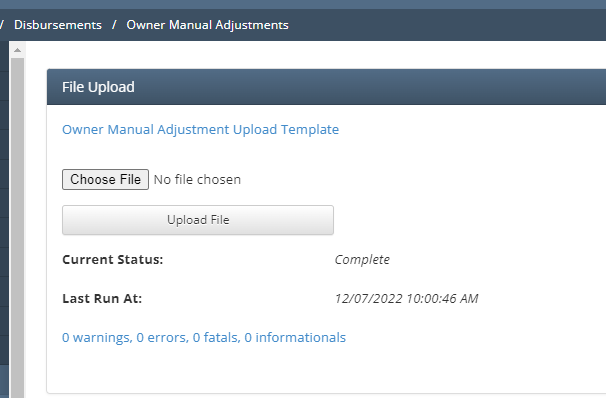
Once the uploader is downloaded, open the template to fill in data.
Gross details cannot be uploaded into the system using this uploader. All amounts below should be the owner’s net due amounts.
As stated above, this uploader does not validate against division orders.
All code tables referenced below can be found under Global Setup>Code Tables if the user has access to view them.
It is best to copy and paste the set ups from the system into the template to ensure data is exact.
Field Descriptions
Accounting Date = This will be the Company Process Control Accounting Date the amounts will pull into (MM/DD/YYYY).
Production Date = Production date for line of detail being uploaded. The system will only allow production dates back to the start date of the Well Completion being uploaded (MM/DD/YYYY).
Processing Due Date = Based on Payment Due Dates code table.
Owner Number = From Business Associates table.
Owner Function = Based on the Role table for the Business Associate number given above, must be an Interest Owner Role Type.
Interest Type = Use code tables set up under Upstream Interest Types.
Meter Number = Well Completions Number that is added to Asset being uploaded to under Well Completion Selections.
Contract Number = Can be left blank or:
Added based on Contracts setups.
Revenue Product = Based on Revenue Products code table.
Revenue Type = Based on Revenue Types code table.
Check DO Journal Components setups to make sure you are selecting the correct option.
Depending on the situation, the amounts being uploaded might need to be booked to General Ledger or not booked to the General Ledger.
If the setups you want don’t exist, set them up before uploading.
Suspense Code = Based on Upstream Suspense Codes table or:
If this field is left blank, the amounts will go in with a Status of Ready to Pay.
Quantity = Can be left blank or:
Numeric based on originating data (owner’s net quantity to be paid).
Quantity Unit = Can be left black or:
Based on product being upload and setups (reference previously allocated volumes Quantity Units).
Energy = Can be left blank or:
If you want to provide MMBTU when MCF is provided under Quantity, put numeric value in
Energy Unit = Can be left blank or:
If energy is provided, provide energy unit (most likely mmbtu).
Value = Numeric based on originating data (owner’s gross amount to be paid).
Value Unit = Based on product being upload and setups, most likely this will be USD (reference previously allocated volumes Quantity Units).
Fee = Numeric based on originating data (owner’s net fees to be paid).
Fee Unit =Based on product being upload and setups, most likely this will be USD (reference previously allocated volumes Quantity Units).
Tax = Numeric based on originating data (owner’s net fees to be paid).
Tax Unit =Based on product being upload and setups, most likely this will be USD (reference previously allocated volumes Quantity Units).
Asset Number = Asset the Well Completion Selections are set up in.
LOI Tag = Can be left blank, would correspond to LOI on Division Order if LOI tag is used on DO
Apply to All Contracts = This is a Y or N field, use Y otherwise contract is required.
Allow BUWH = This is a Y or N field, Backup Withholding.
Product Code = Based on Product Codes code table.
Fee Category = Based on Product Codes code table.
Fee Number = Based on DO Journal Component Setups, if Fee Numbers are used, make sure the correct one is marked for how the line needs to be journalized.
Tax Type = Based on Tax Types code table.
Net Interest = Numeric based on originating data.
ND PPA Reason = State of North Dakota requires the PPA reason, this is a code table.
Can be left blank if not for North Dakota.
Once the template is filled out and saved, navigate back to the Owner Manual Adjustments screen in WEnergy.
Make sure the company at the top of the screen is correct.
Under the File Upload box, click Choose File and select the saved version from step 3.
Click Upload File.
Once file is uploaded there should be data populated in the Owner Manual Adjustments grid.
If there aren’t looks at the warnings, errors, and/or fatals received,
Correct the errors on the upload
Save new template
Refresh Owner Manual Adjustments page
Re-upload file with steps above
If details uploaded successfully, the Company Process Control for the Accounting Date in the upload can be ran.
Follow normal processing steps and validations.
These records will appear with a source of Adjustment in Disbursements>Owner Amounts once the Apply Division Orders step of the Company Process Control is run.

Highlight important information in a panel like this one. To edit this panel's color or style, select one of the options in the menu.