
How do I create a recurring task? (e.g. recurring PM)
In the Task View, click Actions > Create Task.
Fill out the task type, location and other relevant information.
Go to Scheduling Details and enter the following columns:
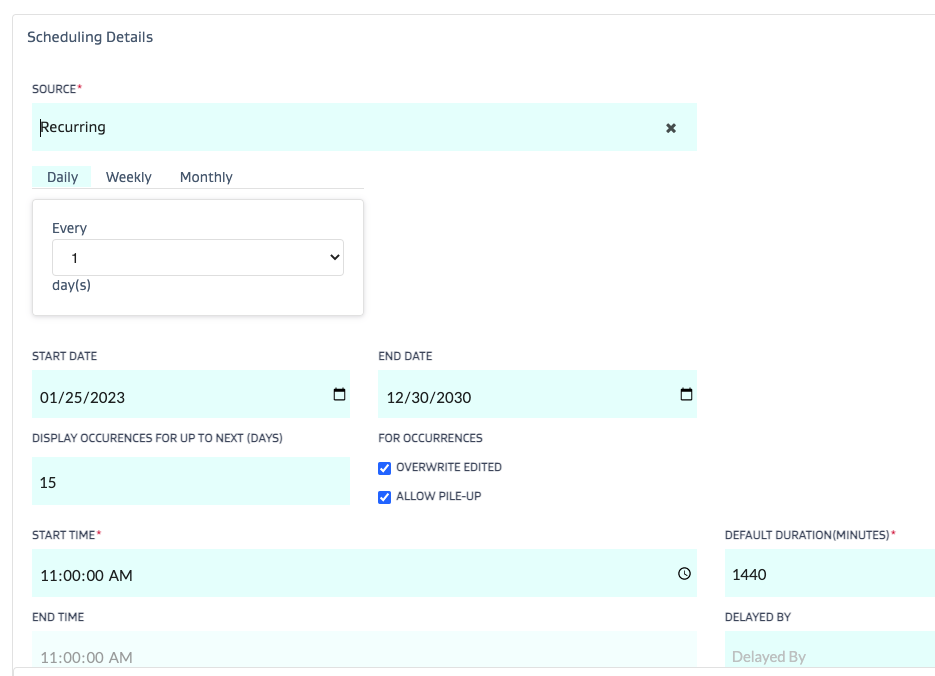
On Source, select Recurring.
Update the frequency input (daily, weekly, monthly).
Enter start and end date.
Display occurrences: Enter a number for how many days into the future you want to see these appear on the calendar grid view. For example, if you select 15 days and the task is every 5 days, you will see 3 instances of the task on the grid moving forward. Once 5 days have elapsed, you will see the next instance show up on the future date grid. This is is only for visual performance purposes. The bigger the number, the more instances of this task JOYN will have to immediately display. Try to minimize this number.
Overwrite Edited: If today is 1/1/23 and you have 3 future recurrences displayed, 1/4/23, 1/9/23 and 1/14/23, and you have manually edited the details of the future recurrence on 1/9/23.
When you update the recurrence rule, if you do not want to apply the new recurrence rule to the 1/9/23 task and you would like to leave it as is, uncheck this flag during the recurrence rule creation.
If you would like to overwrite any previous manual edits, check this flag during recurrence rule creation.
Review start time/duration.
You can now review this recurrence in the Recurring task view page.
To bulk edit a recurring task - refer to the video below:
https://youtu.be/m8K9sYqUht0
Recurring Tasks - Common Scenarios, Issues and Resolutions
Scenario | Issue | Resolution |
|---|---|---|
I deleted the schedules for a given task type after they had already been created. | The already created task occurrences from the recurrence rule did not move forward into today’s calendar day. |
|