
How to create an ABPE alert?
Add New Alert Config from the Alert Configuration screen in the Pump By Exception section

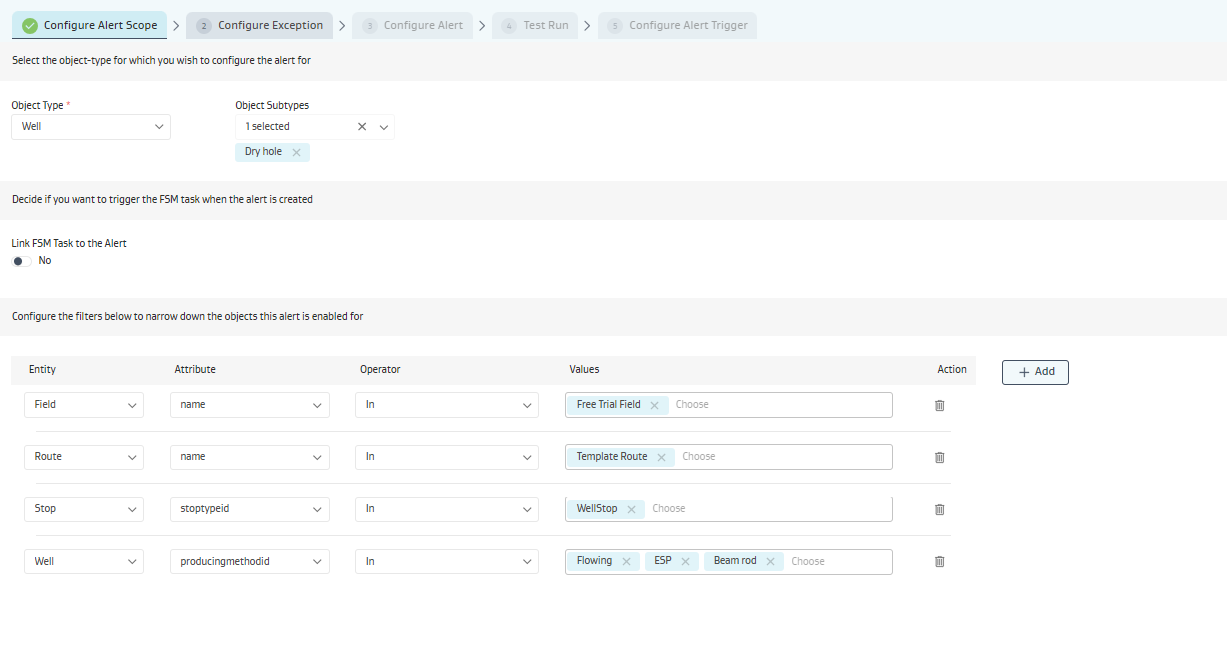
Configure Alert Scope:
In Configure Alert Scope, Select the object type & multiple object subtypes for which you wish to configure the alert.
Additionally, you can add extra filters to narrow down the objects for the alert scope
Field- Name
Route - Name
Stop - Name | StopTypeId
Assets - Well | Tank | Meter | Equipment. All asset’s core & custom will be available for comparison and add a filter on the alert scope
Configure variables and exception conditions that would trigger the alert:
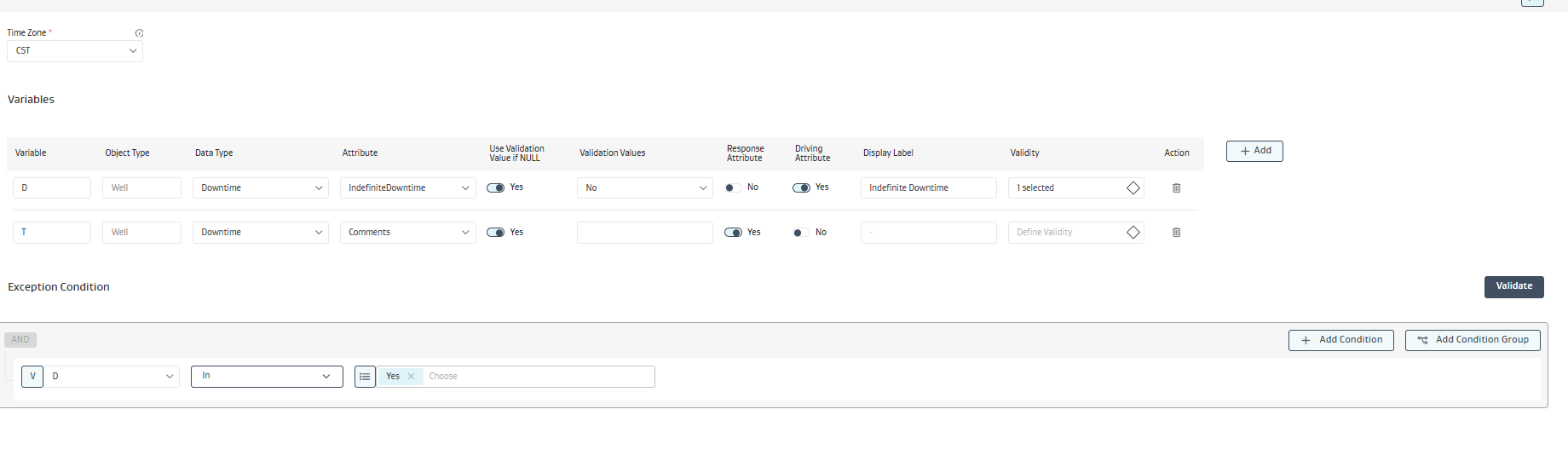
Variables:
Variable - Variable name to use while configuring exception condition
Object Type - Prefilled from Alert Scope.
Data Type - Reading type .
Attribute - Attribute list of selected reading type.
Use Validation value if NULL- Yes/No toggle. Check whether to consider the validation if the attribute value is NULL.
Validation Values- Attribute value that needs to be checked for triggereing the DR Alert.
Response Attribute- Only one attribute can be response attribute and based on this attribute value the alert will be resolved.
Driving Attribute- Only one attribute can be Driving attribute and based on this attribute value the alert will be triggered.
Display Label- It will be enabled for Driving attribute with pre-filled Attribute Display name.
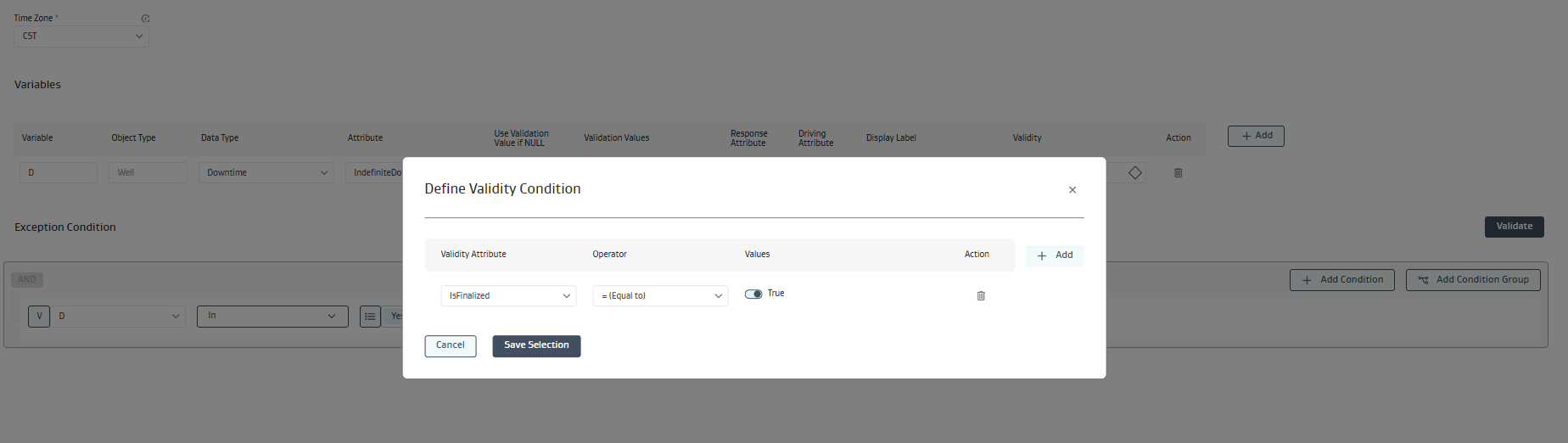
Validity- User can add additional attribute value validitity. Validity attribute can be on any attribute from selected Data Type. Alert scope will be valid until the configured validity.
Exception Condition:
Multiple condition or condition group can be added on the variables defined in above section.
Alegebric expression can also be added as part of exception condition. Supported formulas on APBE: https://w-user-documentation.scrollhelp.site/production/user-manual-for-apbe-functions
User can validate the configured exception condition from the UI
Configure Alert:
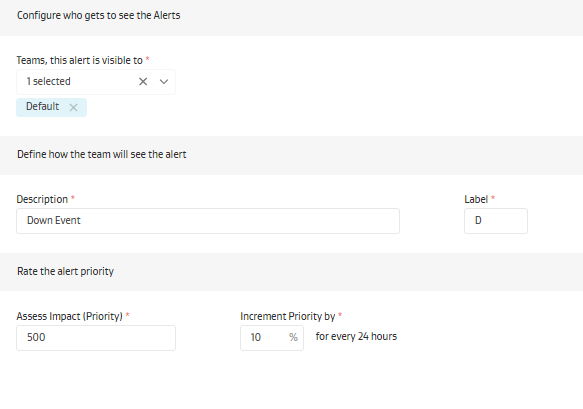
Configure whom and how the alerts will be shown on app users.
Select multiple teams that are applicable for the alerts.
DR label on how the event name will be shown on app.
Alert baseline and incremental priority.
Test Run:
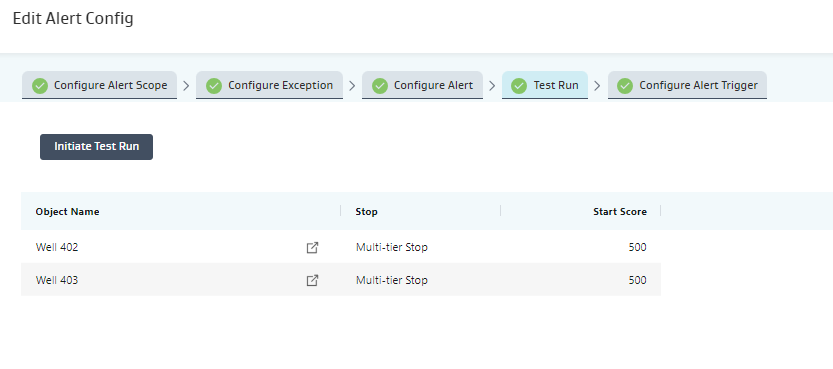
User can initiate test run while configuring the alert to see if the alert is generating correct results.
Alert Trigger:
User can enable real time exception evaluation.
Based on the alert scope, alert will be automatically created, updated, and resolved alerts if the real time exception is enabled.