
What does each Task Type Checkbox Flag do?
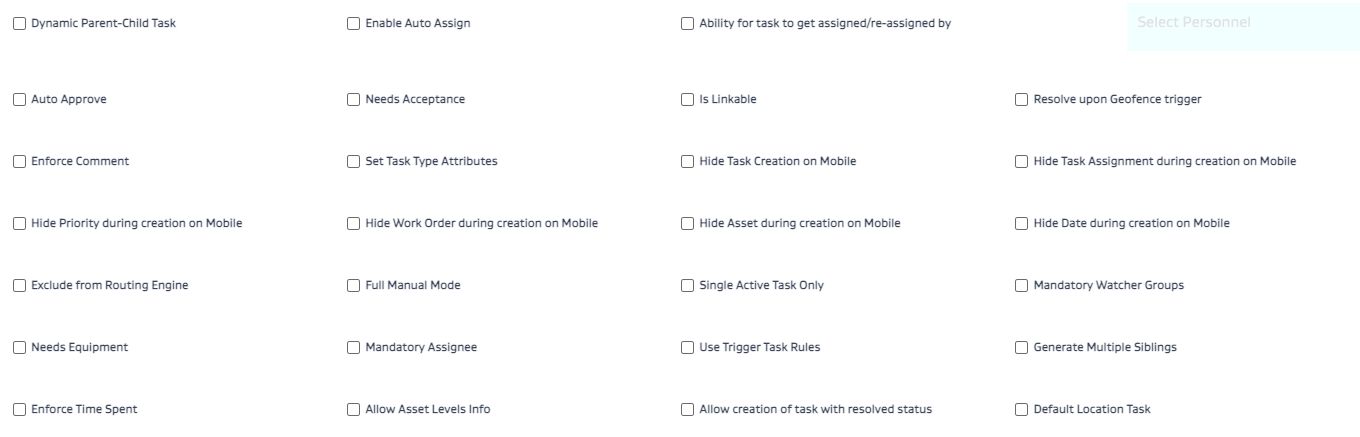
What does each Task Type Checkbox Flag do?
Checkbox/Flag | What it does | Related Videos (if available) |
|---|---|---|
Dynamic Parent-Child Task | Allows creation of ad hoc or dynamic parent tasks with ad hoc children that need not be based on a predefined template | https://www.youtube.com/watch?v=jy5Mxobw5uI
|
Enable Auto Assign | This flag will automatically assign the task to all on-shift users who are on the team that can perform the task type within the area that the stop/asset is in. NOTE: This is commonly used in combination with the Needs Acceptance flag and is commonly used for critical priority scada tasks that require first responder type service. | |
Ability for Task to get assigned/re-assigned by | This flag allows the task to be assigned/reassigned by anybody on the team in the area or the assignee themselves. | |
Auto Approve | Tasks submitted directly from the mobile app will bypass the “Draft” status by enabling this flag. | |
Needs Acceptance | Will require the assignee to accept or reject the task and will provide visual confirmation to the dispatcher of the action taken. | https://youtu.be/j2xD4DY51dA
|
Is Linkable | Allows linking the task to a new task. For e.g. a follow up repair or inspection can be a linked task that is created from a prior inspection. | |
Resolve upon Geofence Trigger | Automatically resolves the task upon the assignee entering the geofence location. Usually used for visual type tasks. | |
Enforce Comment | Forces the assignee to type in a comment prior to allowing resolution of the task. | |
Set Task Type Attributes | Allows setting up of task type attributes. | |
Hide Task Creation on Mobile | Hides the task type from being created via a mobile phone; usually used for when you don’t want field users to create the task type from the field via mobile application | https://youtu.be/7YPuN13ZgfQ
|
Hide Task Assignment during creation on mobile | Hides the assignee field during task creation on the mobile app | https://youtu.be/7YPuN13ZgfQ
|
Hide Priority during creation on mobile | Hides the priority field during task creation on the mobile app | https://youtu.be/7YPuN13ZgfQ
|
Hide Work Order during creation on mobile | Hides the Work Order number field during task creation on the mobile app | https://youtu.be/7YPuN13ZgfQ
|
Hide Asset during creation on mobile | Hides the asset field during task creation on the mobile app | https://youtu.be/7YPuN13ZgfQ
|
Hide Date during creation on Mobile | Hides the date field during task creation on the mobile app | https://youtu.be/7YPuN13ZgfQ
|
Exclude from routing engine | Excludes the task type from being pulled into the routing/dispatching/resourcing algorithm | https://www.youtube.com/watch?v=RUkjFIcskL8
|
Full Manual Mode | Excludes the task type from automated actions such as the routing engine or the daily job which pushes tasks to the next day | |
Single Active Task Only | Ensures that this specific task type can only have one open instance (i.e. status <> resolved) on a specific stop/asset. Typically used when a SCADA alarm is setup to create a task and the SCADA alarm keeps hovering under and over its limit; this flag will ensure the task is only created once until resolved rather than creating a task every time the SCADA alarm comes back on. | |
Mandatory Watcher Groups | Forces the user to select a watcher group while creating a task | https://youtu.be/ccNLEpavOKs
|
Needs Equipment | This flag enables a unique setup for the task type which requires that the task first be assigned to an equipment and then an assignee. This is common for use cases where you have some portable heavy machinery such as a truck or a crane which is required for a task. First, you must assign the heavy machinery for the task, and then you must assign an operator/assignee to run the heavy machinery for the task. | https://www.youtube.com/watch?v=P86VujN62GM https://youtu.be/DsyZyamRlho
|
Mandatory Assignee | This requires an assignee to be assigned before the task can be created. | https://youtu.be/GG-p2fzgL7A
|
Use Trigger Task Rules | Allows setting up of rules to trigger follow up tasks based on attribute values of the initial task. For e.g. An AVO inspection has a rule that says if the user answers “Yes” to the form question “Corrosion on roof?”, then kick off a follow up repair/re-inspection task. | https://youtu.be/AXxnaK-H_yg
|
Generate Multiple Siblings | Allows creating multiple copies of the same task. E.g. A waste truck is ordered for a job. If 10 more waste trucks are needed - the dispatcher can generate multiple siblings and select which form sections of the original task (if applicable) need to be copied into the new task. | https://youtu.be/K4NUik-GQQI
|
Enforce Time Spent | Requires the user to fill out the time spent attribute prior to resolving the task. | |
Allow Asset Levels Info | Allows selecting lower levels of the hierarchy that may be setup. For e.g. if your setup has lower hierarchy levels in the metadata as follows:
| |
Allow Creation of Task with Resolved Status | Enables a toggle for the task type which allows submitting the task as resolved - as long as all validations are met | |
Default Location Task | Selects a system default location for the task. This location is meant to serve as a filler for tasks that don’t require a physical location such as administrative tasks that may need to be completed or field tasks that are not specific to a location - such as inspecting a fire extinguisher in an operator’s truck at some regular interval. | https://www.youtube.com/watch?v=WmAY9xkYxWI&ab_channel=SevenLakesTechSupport
|
Which task type flags should NOT be used together and why?
Our philosophy for JOYN is to deliver value to the field and to deliver it fast. This requires us to build flexibility options using task type flags on the Administrative side of the application. Often times, these options may conflict with one another if used incorrectly. As we discover these scenarios - we will document these scenarios here.
In the future, we will try to build validations that does not allow the user to use these flags in combination with one another.
This flag | should not be used with flag | because |
|---|---|---|
Auto Approve | Allow creation of task with resolved status | Auto approve skips the DRAFT status with the intent of moving the task to Open without a Confirm step. However, the point of allowing creation of a task with a resolved status is to move directly to the Resolved status. |