
How do I update formula meters in a pre-existing allocation network with a new calculation logic?
Currently, when making any changes in the formula meters, those changes become applicable to any version of the network that the formula meter exists in. The formula meters don’t respect the network version dates. Assume the following scenario:
You have a formula meter in an allocation network that was created as “Well 1 Volume” + “Well 2 Volume” and the allocation network was active starting Jan/2023
You are making the change on Apr/2023
You want to update the logic of the formula meter to be “Well 1 Volume” + “Well 2 Volume” + “Well 3 Volume” starting from May/2023
If you go into the network and make the change to the existing formula meter, it will apply to any period the formula meter is included in the network even if you save the network as a new version effective on May/2023. So, if you go back and run allocations for Jan/2023 or the current month (Apr.), it will use the updated formula instead of the original.
The correct step of updating the formula meter to where the new logic is only applicable to allocations for periods on or after May/2023 while the original formula meter calculation remains effective for allocations from Jan/2023 thru April/2023 to do the following:
Go into the allocation network in edit mode.
In the “Library” search for the formula meter you want to update and make a copy by selecting “Duplicate”.
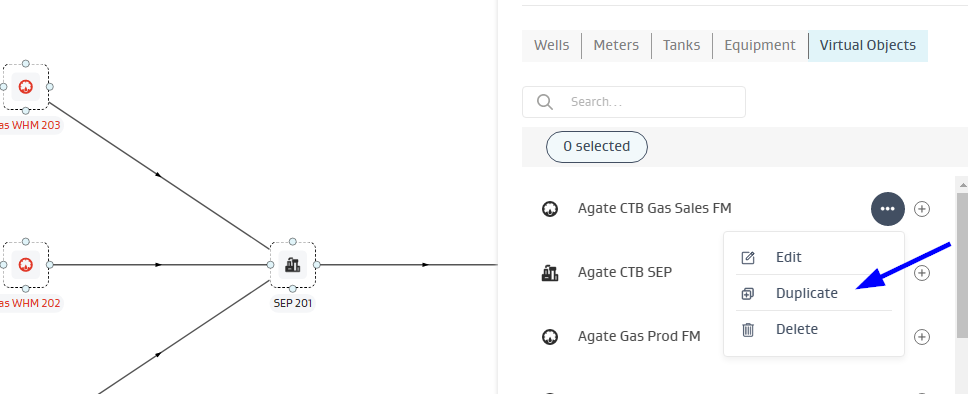
Update the copy of the formula meter with the new logic and save it with a different name.
Remove the old formula meter from the network and replace it w/the new one you created.
If the old formula meters are selected as the volume sources in the Allocation Config, then the new formula meters will need to be selected.
Save the network as a new version with an effective start date of May/2023.
Related Articles
- What is the difference between Daily Ledger- Tanks, Daily Ledger Wells and Monthly Ledger - Tanks
- What dispositions in Joyn Allocations are locked-in ( not changeable)?
- How do I update formula meters in a pre-existing allocation network with a new calculation logic?
- Why isn't a meter showing up as a volume source?
- How do trigger allocations work?
- Can I run allocations by Purchaser or Production team?
- How do I configure a network to use downtime and flowing events for allocations?
- Does re-running allocation create duplicates or over-write existing allocation results?
- Can production accountants perform reconciliation at a different temperature/pressure base?
- What do the "Allocation Source doesn’t equal the sum of the Allocated Well Volumes" exceptions indicate?
- How do I set up net volume allocations?
- How to setup allocations, if readings start date is not the start of the month?
- What is the SOP for initializing ledgers?