
How does the dispatch/routing engine work?
>>> Common Settings - Daily and Planning Engine <<<
Tasks considered by Engine
Based on Task Status:
Daily and Planning engine would only considerTasks with below task statuses
NOT READY
OPEN
CHANGE REQUEST
Task Statuses which are NOT considered are Resolved, Draft
Based on Task Type Settings:
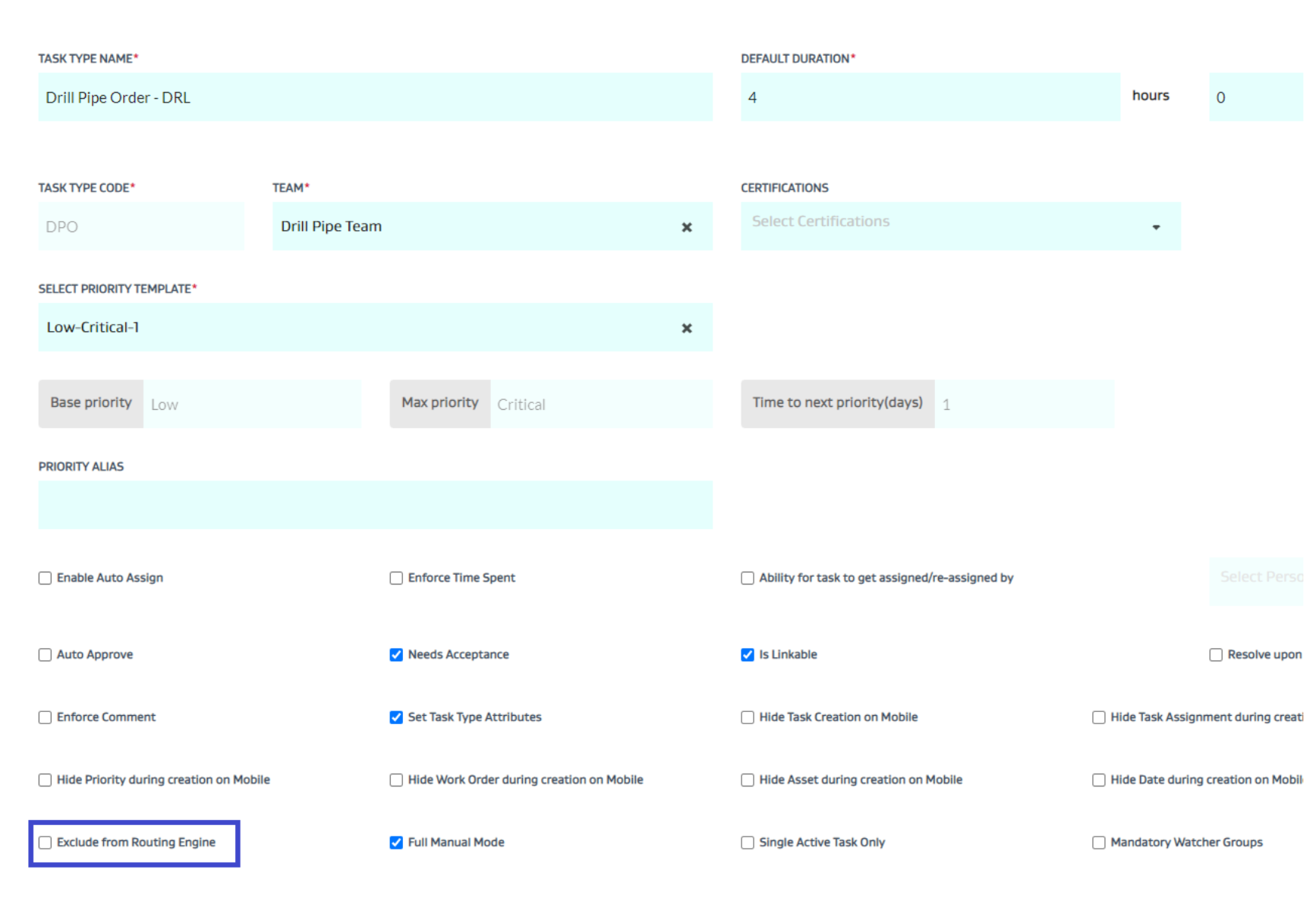
Exclude from Routing Engine:
Daily and Planning engine would NOT consider Tasks with Task Types which have EXCLUDE FROM ROUTING ENGINE flag ON.
Parent - Child Tasks:
Only Child Tasks would be considered by Daily and Planning engine, Parent Tasks would not be considered.
All the different settings defined in this document would be considered only based on children tasks but not based on parent tasks.
Example, the Exclude from Routing Engine config would be considered from the Tasks Types of the Children but not Parent.
Template Parent Tasks:
Template Parent Tasks would not be considered by Daily and Planning engine
Templates Parent Tasks are the tasks which are created using the Task Bulk Integration API and have template configuration within the task.
Based on Area selection:
For Adhoc runs:
Daily engine and Planning would only consider the Areas selected on the Task View page.
Based on the Areas selected
Only Tasks belonging to the Assets in the selected Areas would be considered
Only Teams-Users belonging in the selected Areas would be considered
If no Area is selected on the Task view, then all the Areas which the user has access to in the field would be considered

For Scheduled runs:
We have option to schedule a Daily engine run only.
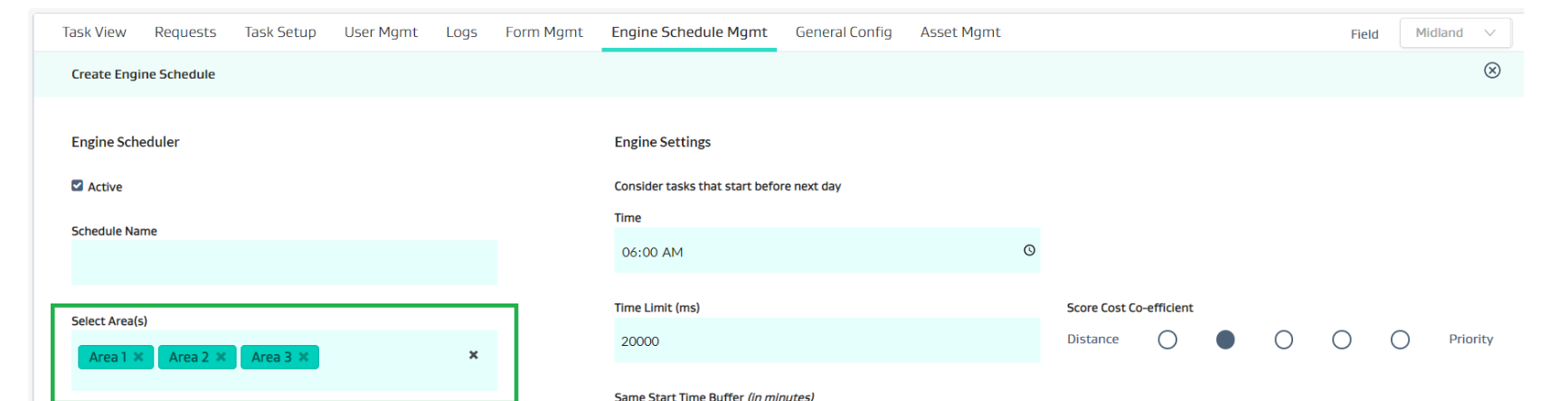
Daily engine would only consider the Areas selected on the Engine Schedule define in the Engine Schedule Mgmt page.
Based on the Areas selected
Only Tasks belonging to the Assets in the selected Areas would be considered
Only Teams-Users belonging in the selected Areas would be considered
Advanced Settings
Disable Tech End Location:
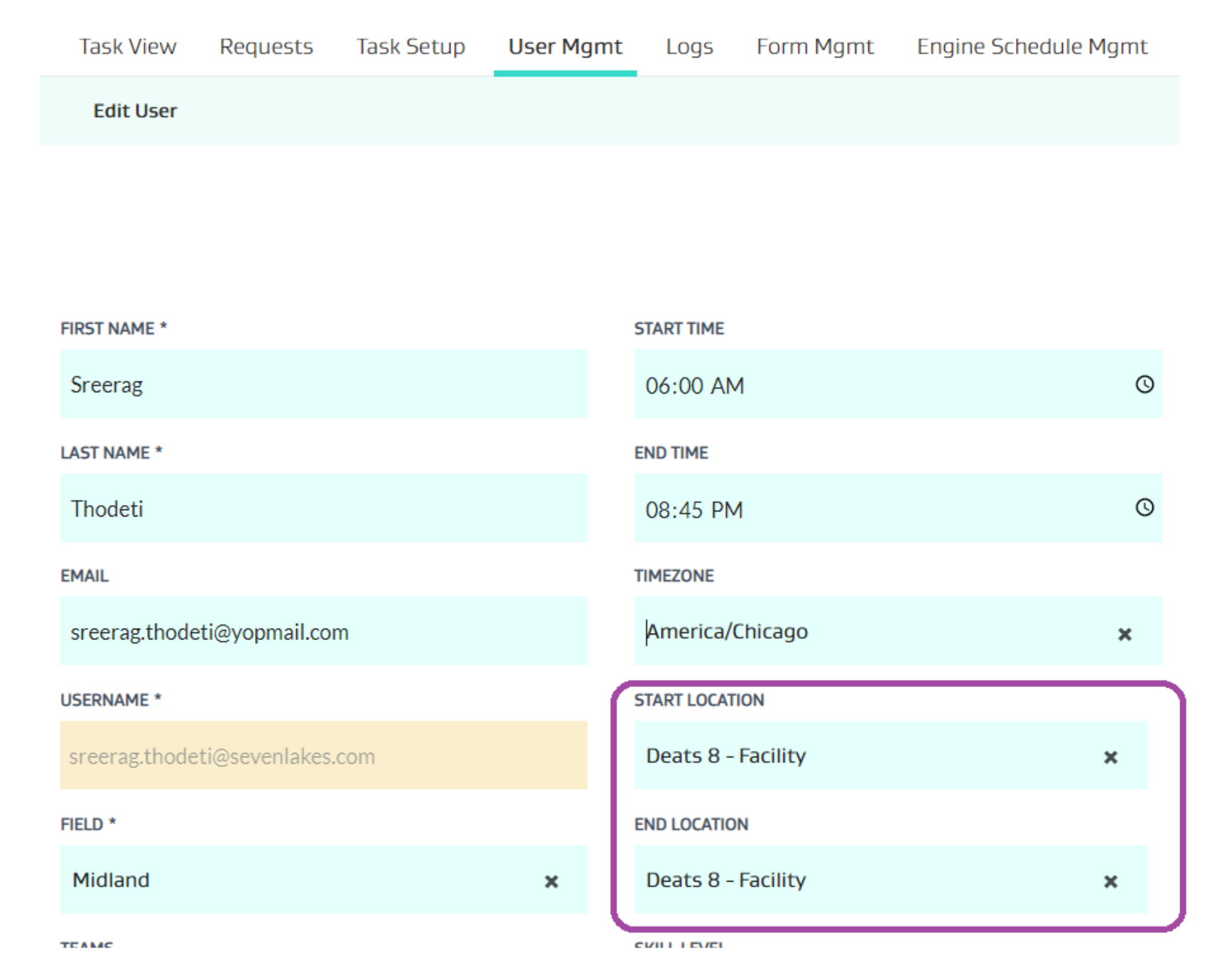
Every user who would need to be considered by Daily and Planning engine would need to have both Start Stop Location and End Stop Location.
When Disable Tech End Location config is OFF
Daily and Planning engine considers User end location from User - end stop location and generates the user’s work day (task seq for the day) having him end at User - end stop location.
In case, Disable Tech End Location config is ON for an engine run then
Daily and Planning engine would not consider users end location and generates the user’s work day (task seq for the day) without having him finally end at the User - end stop location.
This setting is normally used when travel time by users for heading towards their end location (base locations or home location) need not be accounted in the shift time.
NOTE: Even though this setting may be selected, the End Location of the users must still be setup in User Management for the engine to run properly.
Keep existing Assignments for on-shift Users:
When Keep existing Assignments for on-shift Users config is OFF
Daily and Planning engine would not respect any of the pre-existing user assignments on the considered tasks and it would try to find the best assignments based on the given inputs and configurations
When Keep existing Assignments for on-shift Users config is ON
User Assignments on the tasks considered would be respected by Daily and Planning engine
Engine would not make any re-assignments for the tasks which have assignees, it would try to just sequence the tasks in the user schedule in a more optimized manner given current factors/inputs (timing, priorities, locations, etc).
Use Crow Fly Distances:
When Use Crow Fly Distances config is ON
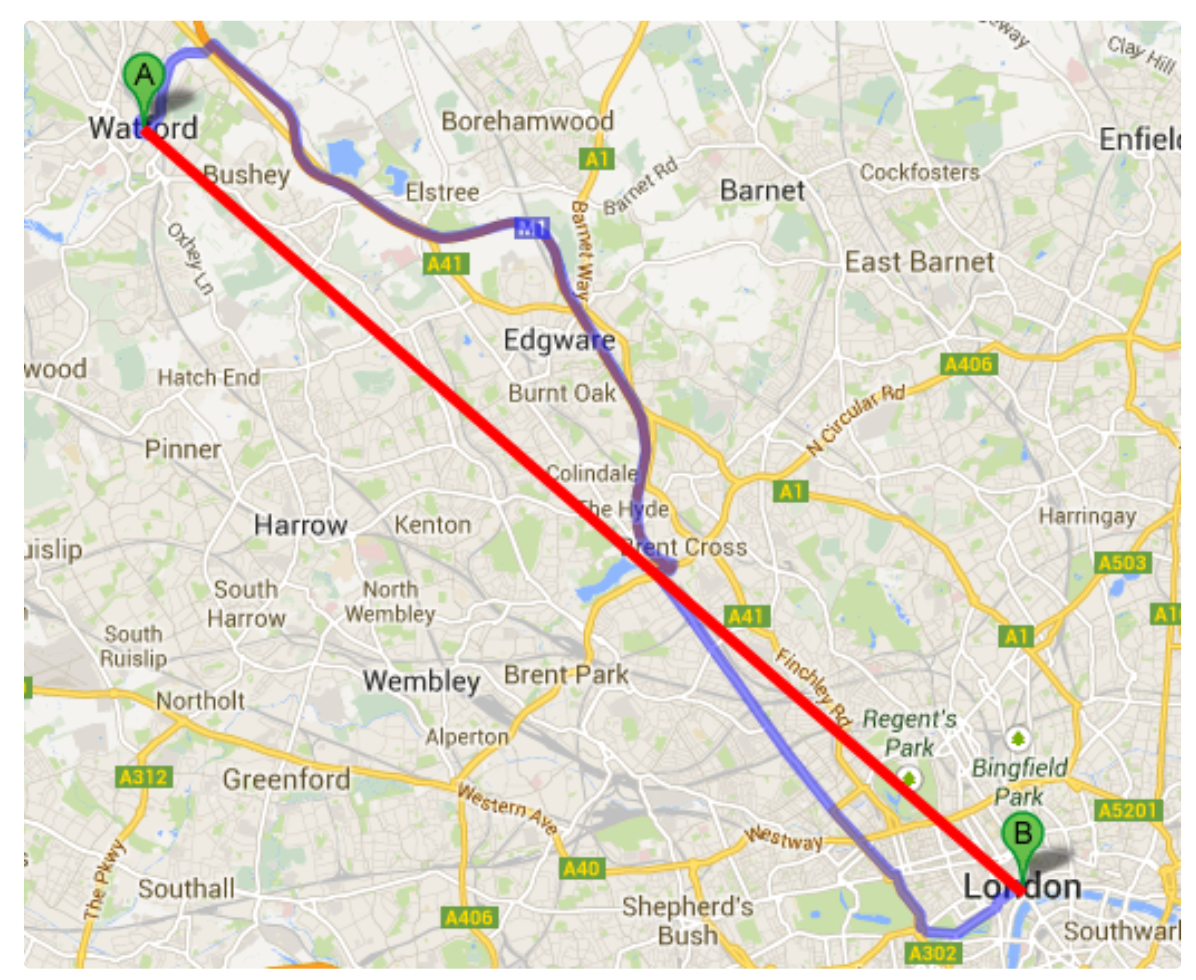
Distance between all the Stops would be calculated as a straight line distance from one stop to another by Daily and Planning engine.
In the below image, length of the Red Line is the crow fly distance between point A and point B
Additional Distance Factor (%) - This is a numeric field, this is used to add padding to the crow fly distance to make it more realistic.
In the below image, say red line measures 100 miles and blue path measures 125 miles.
Now if we set Additional Distance Factor as 20% then the final distance between point A and point B considered by engine would be 100*(1 + 20/100) = 120 miles, which is more closer to actual distance (125 miles).
When Use Crow Fly Distances config is OFF
Daily and Planning engine would use the pre-loaded distance matrix from GIS Integration to FSM
Note: For calculating the drive time from distance, FSM would be considering average speed as 20 miles/hour
Use User Location:
When Use User Location config is OFF:
Daily and Planning engine would consider User's start location as the User Start Stop Location from User details information.
When Use User Location config is ON:
For every user considered in the Daily and Planning engine run, engine would try to get the nearest stop as per their current locations and use it as user’s start location in the engine run.
This is generally used when we run the engine in the middle of a shift, so that users are routed from the nearest stop where they are working rather than user’s start stop location from user details information.
NOTE: Using this setting when users are far outside of the field (for e.g. their home location) - may result in erroneous initial drive times since it will start the user at the nearest stop which may still be far from the user’s actual current location. A potential solution to this would be to add non field common locations to the field’s data set to provide potential stop locations that may be more reflective of how far the user may be.
For example - choosing 3-4 points along the highway that leads from the nearby town(s) driving towards the field and adding them to the master data as stops.
Disable Location Restriction Timings:
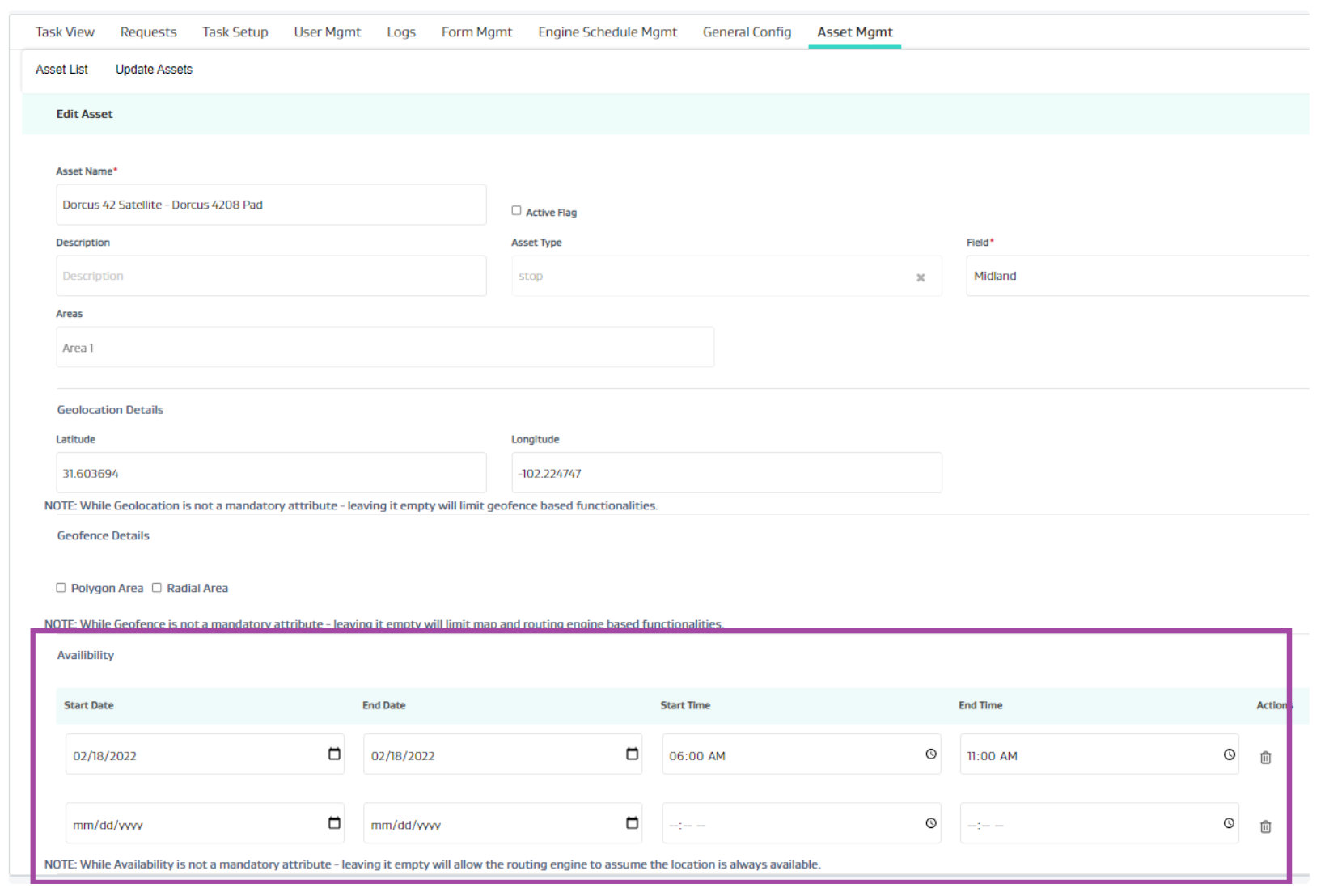
We can set Location restriction timings for individual stops in FSM using the asset management
When Disable Location Restriction Timings config is OFF:
Daily and Planning engine would consider the Location Availability restriction on the dates defined in the Stop information and would not assign any tasks on the stop or its corresponding assets (wells, meters, tanks, equipments) out of the available slots on the defined dates.
A common use case for this setting is Hunting Season restrictions which may say that during the months of March-June between the hours of 12 and 4PM - these stop locations will be inaccessible for safety reasons due to hunting restrictions. The engine will then avoid scheduling tasks at these locations during these time slots.
When Disable Location Restriction Timings config is ON:
Daily and Planning engine would simply ignore all the availability restrictions set on the stop information and assigns the tasks.
Balance Techs Shift Utilization:
When Balance Techs Shift Utilization config is ON:
Daily and Planning engine would try to balance the Total Drive Time + Service Time for all the Techs making every tech to end their tasks at similar timing.
For example, consider there are two lease operators Shane, Marlin
Shane ’s start location is very near to district where there are 10 tasks and Marlin ’s start location is near to a different district which has only 5 tasks and both these districts are little far to each other.
If Balance Techs Shift Utilization is OFF
Given Shane has enough time, engine might try to assign Shane with the 10 tasks near him, which might make him to end the work say 5 PM
Given Marlin has enough time, engine might try to assign Marlin with the 5 tasks near him, which might make him to end the work say 2 PM
Engine might have given this assignment in view of optimizing the travel distance.
Now to make both the LOs to share work based on work load at different districts, we could set Balance Techs Shift Utilization config ON and re-run the engine.
Engine would try to share the work, the result might be, Shane getting 8-9 Tasks and Marlin getting 6-7 tasks and both ending at some where near 4 PM
Time Limit (ms):
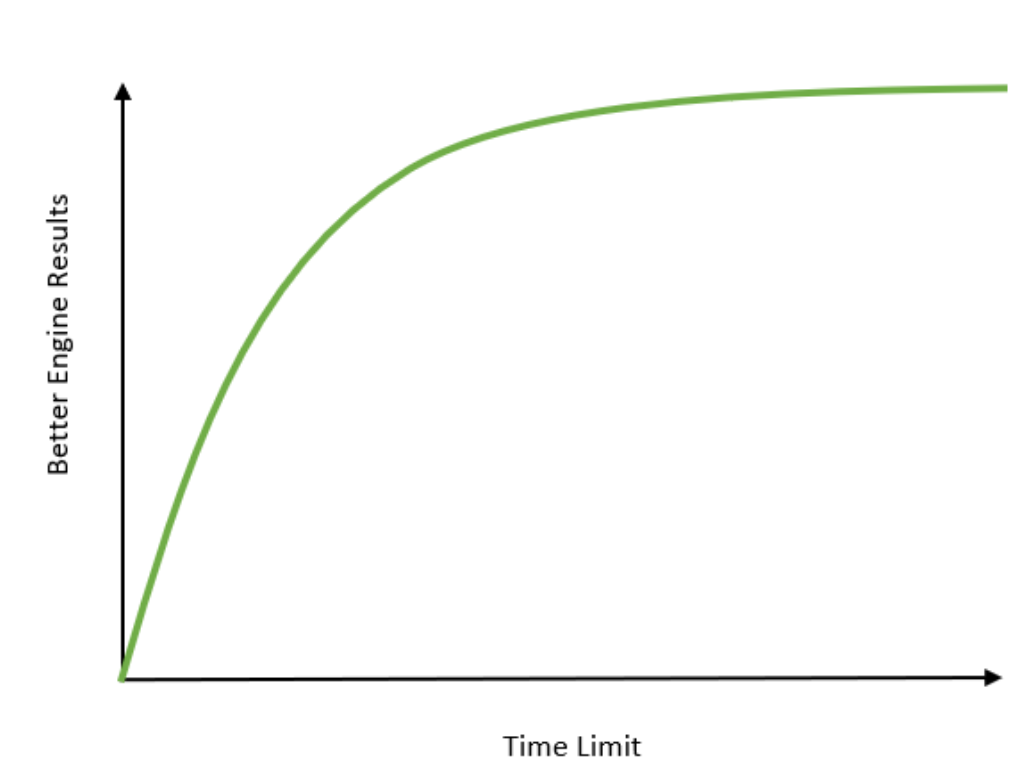
Time given to engine Algorithm to run and provide results. This time is in milli seconds.
This setting applies to both Daily and Planning engine as the same way.
The more the time given, then better the results are, given that after some point even after increasing the Time Limit would not change the result.
As a thumb rule, please use the following
For Scheduled Runs, please use 240000 ms ( 240 sec )
For Adhoc Runs
Task Count < 80 => Use 60000 ms ( 60 sec )
Task Count < 150 => Use 120000 ms (120 sec )
Task Count < 300 => Use 180000 ms ( 180 sec )
Everything else use 240000 ms ( 240 sec )
Score Cost Co-efficient:
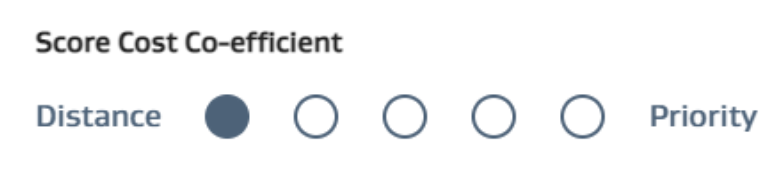
Score Cost Co-efficient helps us to define the intensity we would like to give to distance and intensity we would like to give to Priority for every engine run
We have 5 options available,
Extreme left is the setting where we want engine to give high intensity to distance and low intensity to priority
Extreme right is the setting where we want engine to give low intensity to distance and high intensity to priority
Moving from left to right in the above options would
Decrease the Intensity on distance
Increase the Intensity on Priority
This setting applies to both Daily and Planning engine as the same way.
Clustering:
In FSM, we have two levels of clustering
Stop Clustering: Identity all the tasks on different objects in a single stop as a cluster, this cluster would only get created if we have Enable Clustering config as ON
Group Clustering: Identity all the tasks on a set of stops as a cluster, this cluster would only get created if we have Enable Group Clustering config as ON
This is common when you have to enter a ranch off the highway to get to a series of stops/wells through a specific locked gate. Ideally, you want to enter this area once so the engine can try to cluster these together as a mega-stop.
NOTE: This requires back end data setup to configure the ranch style mega clusters
Enable Clustering:
When Enable Clustering config is ON:
Daily and Planning engine would identity all the tasks on different objects in a single stop as a cluster
Engine would send the users only once to the cluster rather than multiple times
Example:
Say, we have 3 wells on a Stop X and we have 1 task on each well with different priorities Critical, Medium and Low
Now, if the config is ON, then engine would send a user to the stop X cluster only once and get the desired tasks completed.
If this config is OFF, there could be a chance that the user would need to complete the critical task first on the stop X and then move to a different stop to pick up another tasks and come back to the stop X and perform medium and low tasks.
Enable Group Clustering:
When Enable Group Clustering config is ON:
Daily and Planning would identity all the tasks on a set of stops as a cluster, defining different groups with set of stops is handled from backend, there is no UI for this as of now.
Engine would send the users only once to the cluster rather than multiple times
Example:
Say, we have 2 well pads at the bottom connect to the tank battery at the top.
Now, if the config is ON, then engine should see this as a grouping of 3 stop locations that are related to each other (as a single cluster) and send a user to this group cluster only once and get the desired tasks completed.
If this config is OFF, there could be a chance that the user would need to complete a task first on Well pads first and then move to a different stop to pick up another tasks and come back to the battery to perform pending tasks.
- How do I setup a user?
- How do I change the task type AFTER creating the task?
- What is the difference between a task type attribute, a global attribute and a form attribute?
- How do I set up FSM?
- How do I set up a task type?
- How do I push open tasks to the next day?
- How do I attach metadata attributes to equipment or wells?