
Accounts Payable - Process Payment(s) in W Energy
Below are steps needed to process payment(s) in W Energy, payment vouchers are not automatically created. An invoice must be in Open status and not already tied to another payment voucher. AP payments is the example below. The same steps are needed for creating Land and Revenue payments.
📘 Instructions
Create Payment Voucher
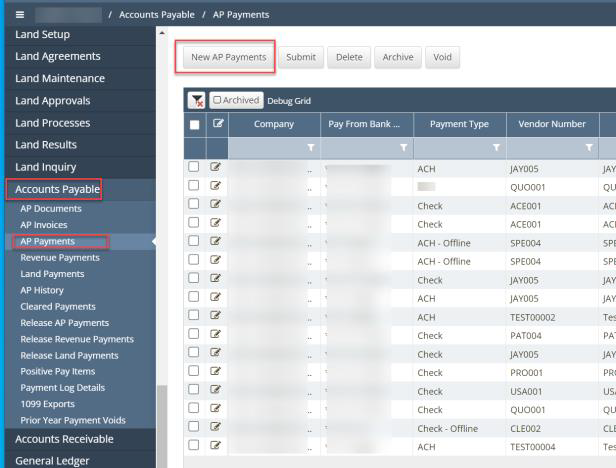
Navigate to Accounts Payable > AP Payments
Enter the following items in the pop-up window:
a. Accounting Date
b. Payment Date
c. Pay Through Date – this will pull in invoices that have a due date prior to this date
d. Company Code – optional except for Revenue payments
e. Optional Choices: Payment Type, Role Type, Payee
f. Click Create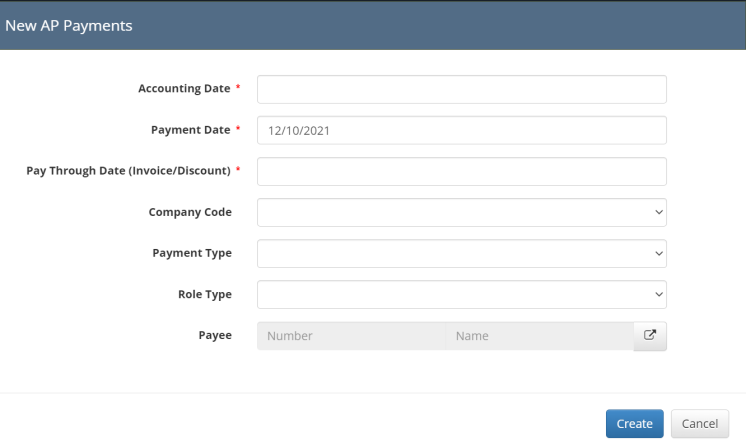
A display window will appear that tells how many payments were created or if there was a reason why a payment wasn’t created. If a payment wasn’t created typically a payment type is the issue. There are usually two possible reasons:
Update the bank account under Financial Setup>Bank Accounts to include the payment type on the bank account or
Go to the invoice on AP Invoices and update date the payment type. Payment type can be updated as anytime prior to it being added to a payment voucher.

When payment vouchers are created, they will be in a draft status:
Mass submit all vouchers by selecting and clicking approve from the invoice payment grid or
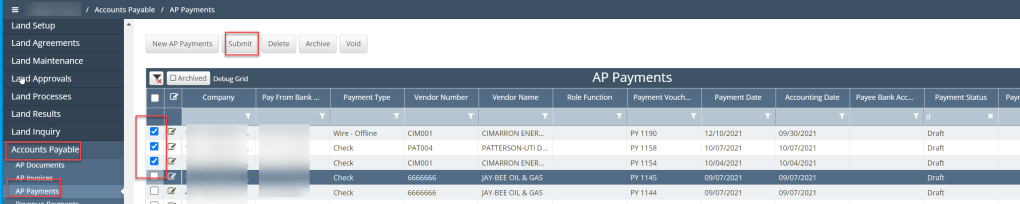
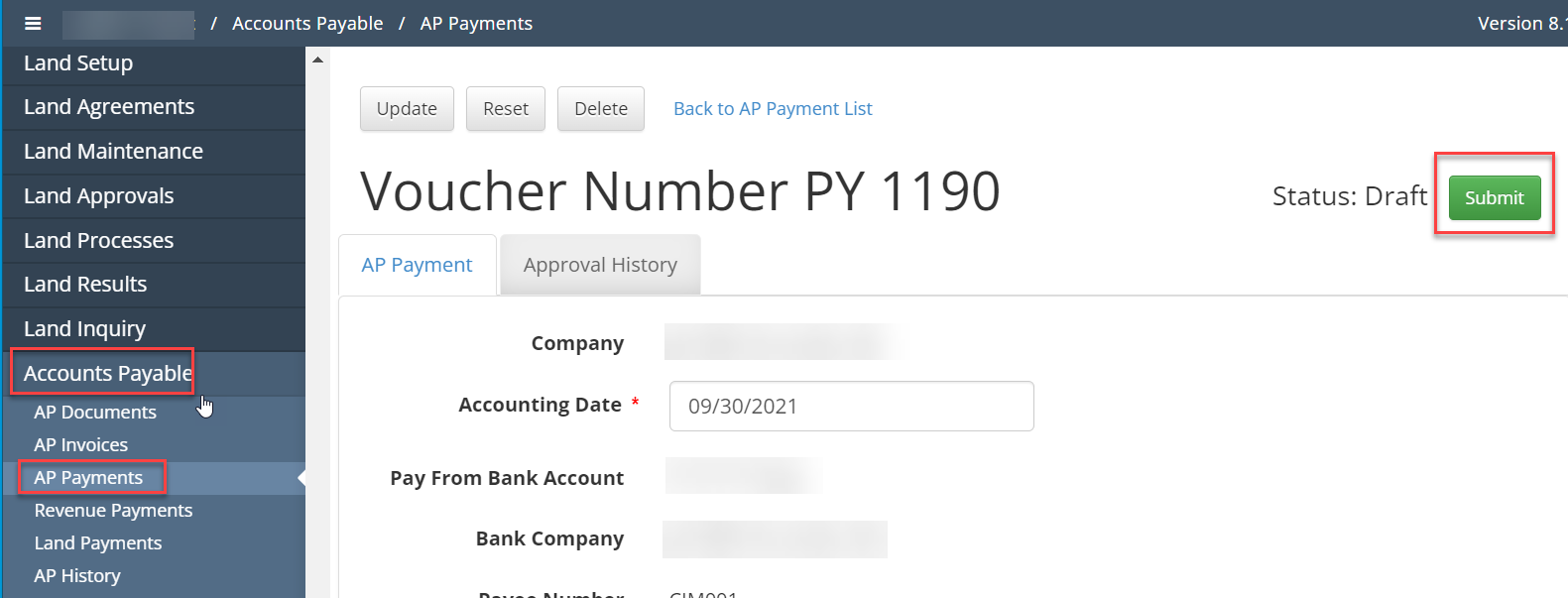
Select the individual invoice:
Review invoice
Click Submit in the upper right-hand corner of the screen.
A Payment voucher in draft status can be deleted. If a payment voucher is deleted, the invoice will be available to pick up in the next payment voucher creation process.
Once the payment voucher has been submitted, it will enter the approval workflow. One the voucher has been approved; it will change to a pending status. The invoice in the AP invoice grid will show a status of Paid.

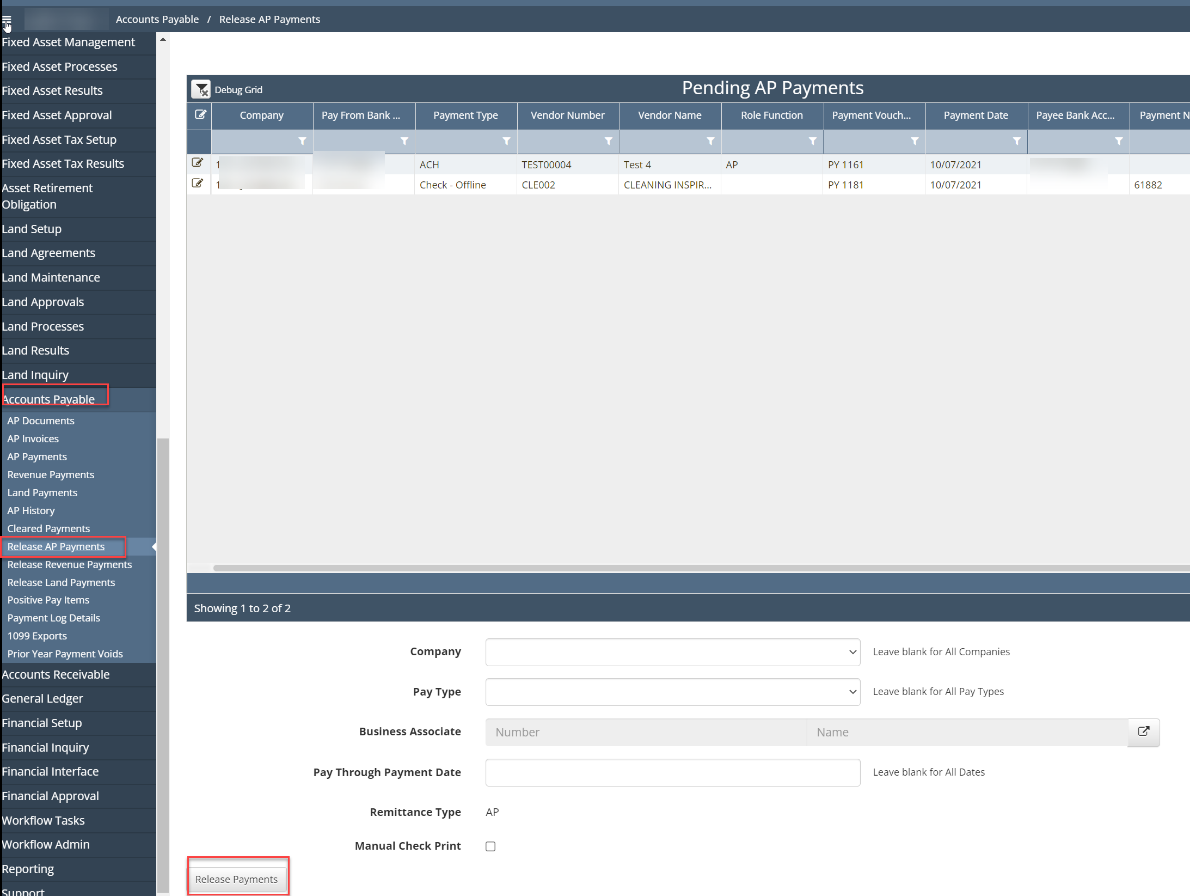
Navigate to Accounts Payable>Release AP Payments. Scroll to the bottom of the page and click release payments. The Selection options can be used if only certain payments should be released.
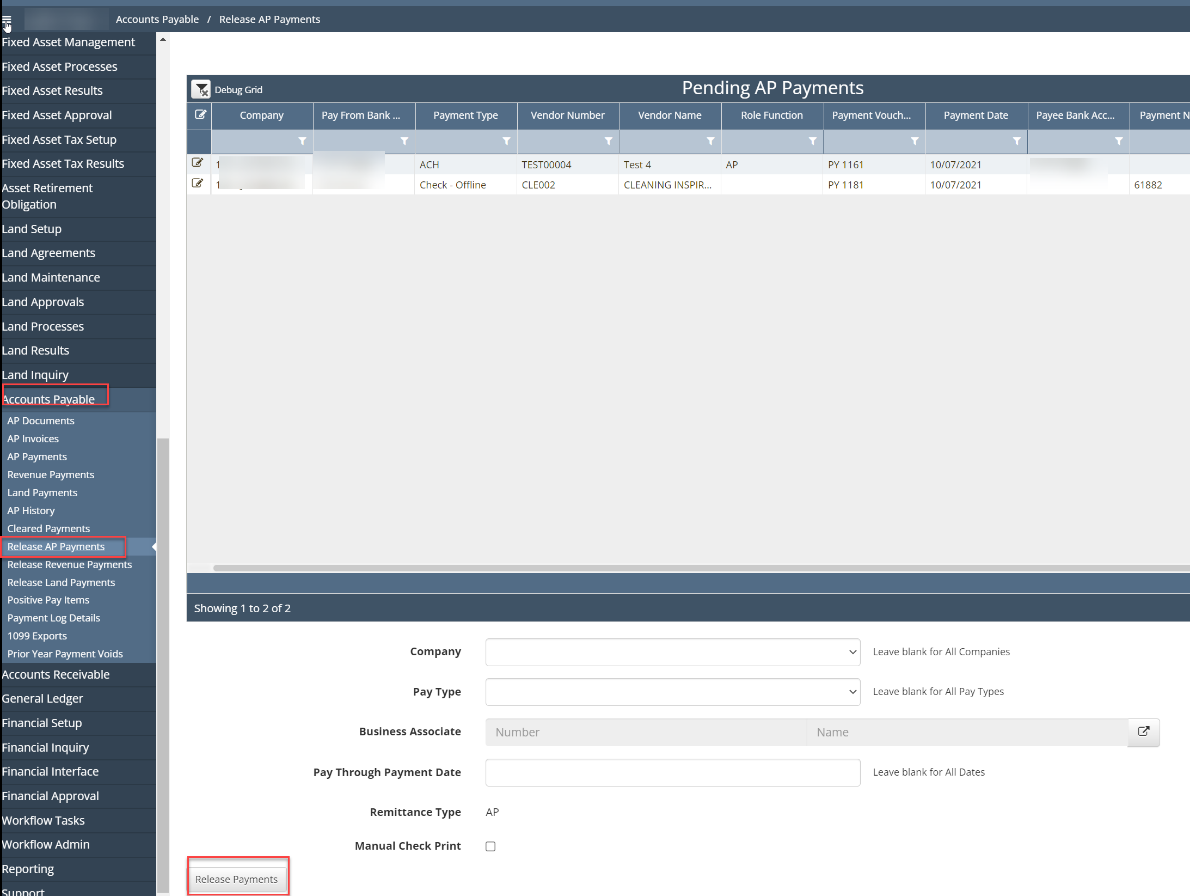
Once the payment has been released the payment voucher will show a status of Paid.
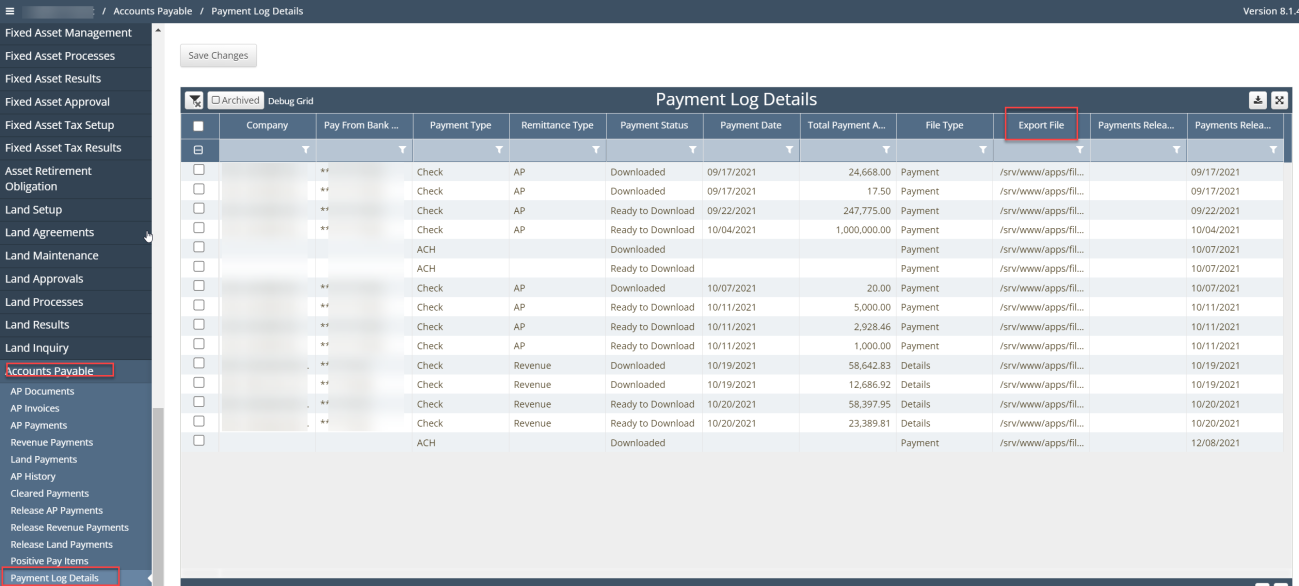
To download the payment file (check, wire, ach), navigate to Accounts Payable>Payment log details and click the export file link.
Void Payment
Navigate to Accounts Payable>AP Payments
You can checkmark the voucher and click on Void or
Select the voucher through the pencil/paper button
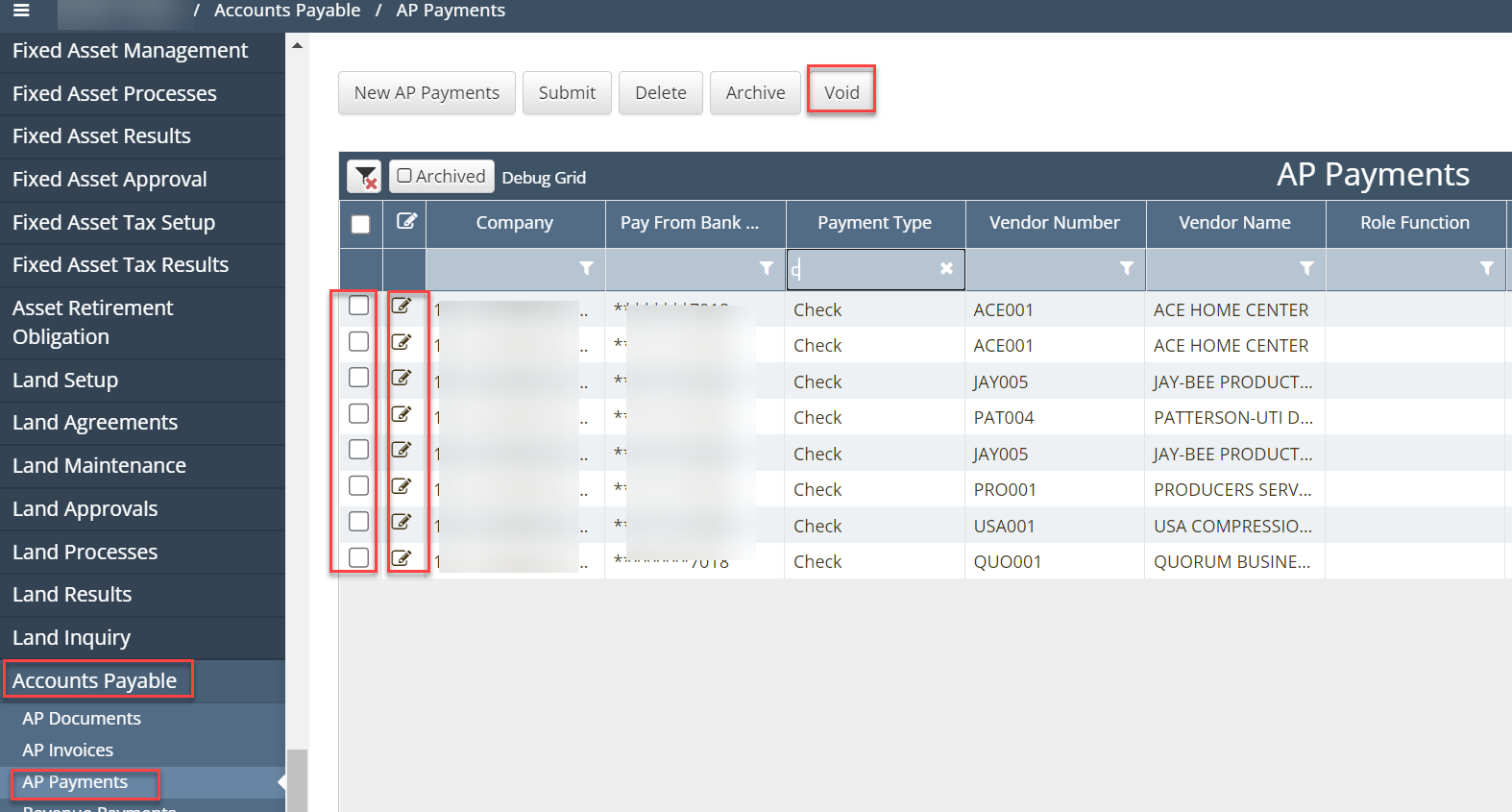
Select void button in upper right-hand corner
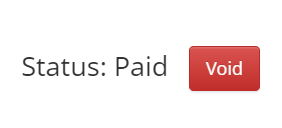
The void voucher will enter the approval workflow. Once the voucher is approved the status will showing pending.
Navigate to Accounts Payable>Release AP Payments. Scroll to the bottom of the page and click release payments. The Selection options can be used if only certain payments should be released.
The invoice will now be in an Open Status and can be processed again for payment.
Partial Payment
To create a partial payment, follow steps 1 to 3 and 4b from the create payment voucher process
Once in the payment voucher, scroll down to the vendor invoice selection update amount to pay to be less than amount owed to short pay invoice.

Click Submit in the upper right-hand corner of the screen.
Navigate to Accounts Payable>AP Invoices to see that the short pay left the invoice in the “Open” status and the “Current Amount” is now less than the “invoice Amount” to reflect the amount that was paid. Because the invoice is still in the “Open” status it will be picked up in the next round of payment vouchers created that it falls within the pay through date range.
