
Mapping Team-Area-User and Team-Task Type
This is probably the most complex part of JOYN FSM but its also what allows JOYN to properly mimic how your field operates. Rest assured, once you understand this – setting up JOYN becomes a lot easier.
Entity Mappings
Mapping # | This Entity | is Mapped to |
|---|---|---|
1 | Users | Teams |
2 | Teams Remember: teams are a field wide list of users so the entire team may not serve one specific area of a field. Therefore - you have to setup which team members will serve each given area. | Areas |
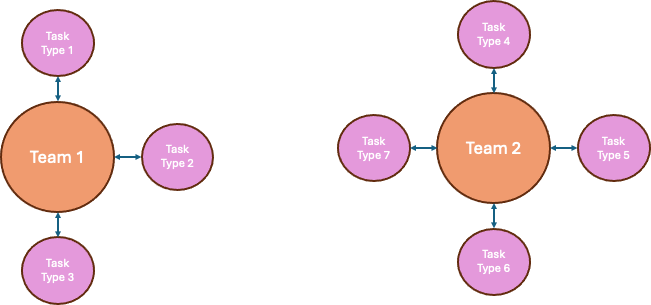
3 | Task Types Remember: a task type can only be assigned to users from a single team. However, a team can be mapped to multiple task types. | Team* *Note: one team, task types can only be mapped to a single team, and not multiple teams For e.g. An Electrical Team may be mapped to Panel Repairs, Power lines. However, Power lines can only be mapped to the Electrical Team. -So if you have instrumentation specialists that can also perform power line repairs – you may want to add them to the Electrical Team. -Or you can create a separate team for Power Line Repairs called “Power Line Team” which consists of Electricians and Instrumentation Specialists. |
Team-Area-User Mapping
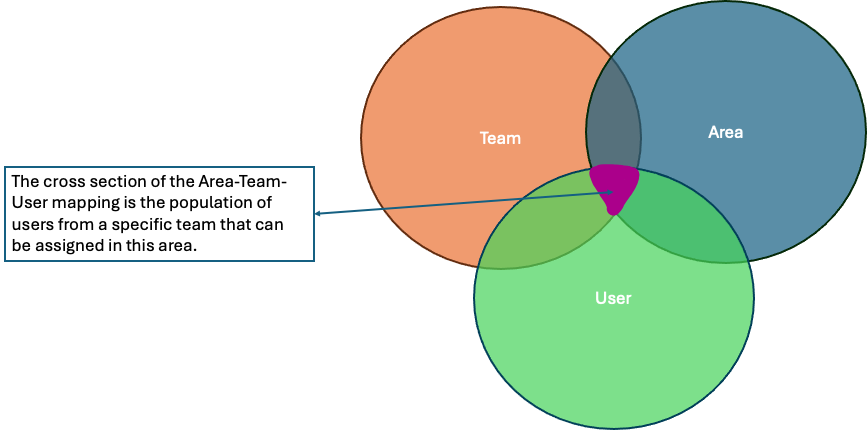
Team-Task Type Mapping
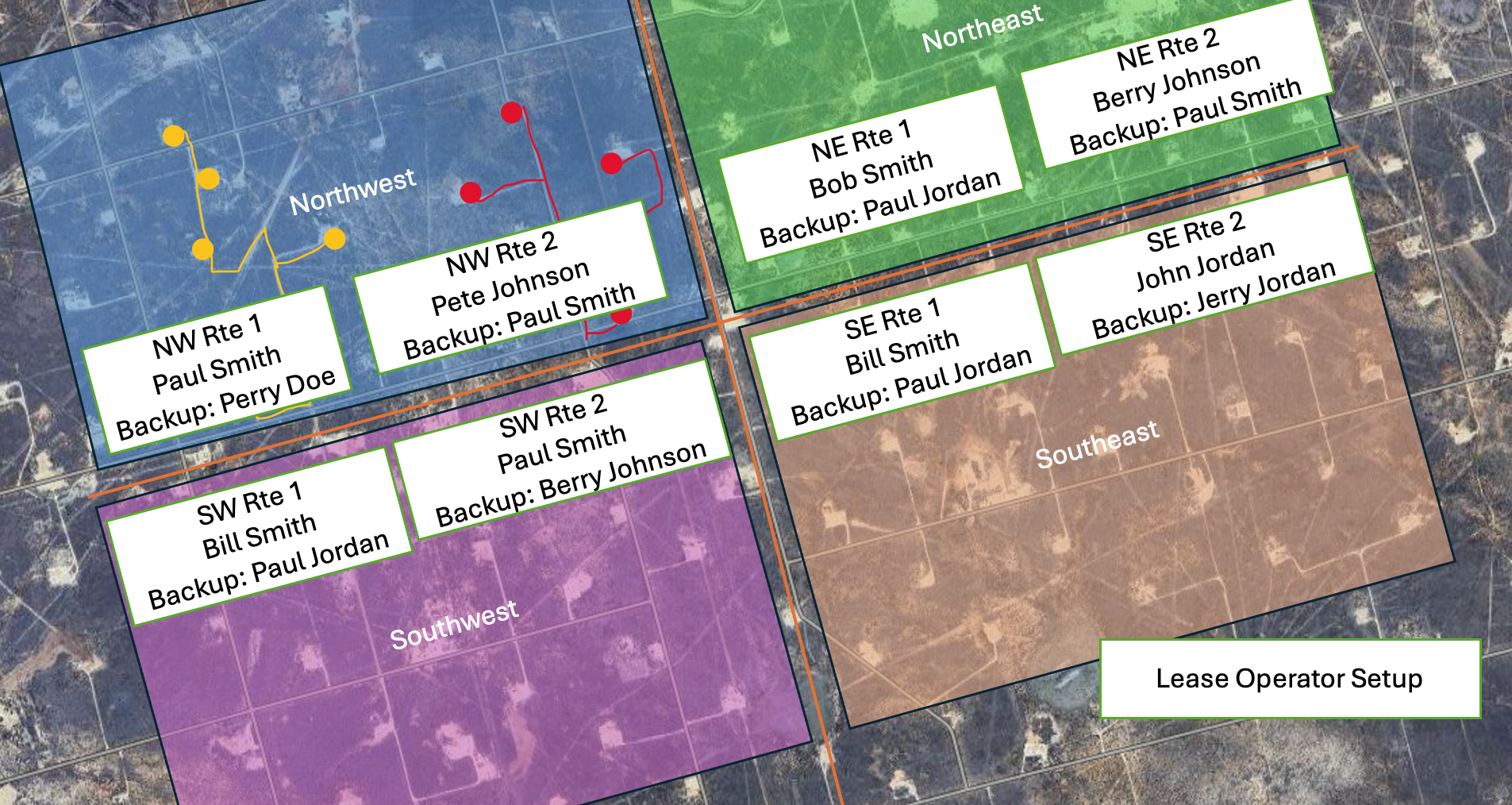
Visually Mapping Lease Operators
In this example - Northwest, Southwest, Northeast, Southeast are areas within a field.
The individual routes are also setup as route level Areas within the same field but with a subset of stop locations.
i.e. Northwest Area has all the stops in NW Route 1 and NW Route 2.
The stops in the Area “NW Route 1” are a subset of the stops in the Area “Northwest”. (similarly for Area “NW Route 2)
Note that this is not a strict hierarchy as it is a nesting of overlapping areas.
Within each route level Area - the relevant Lease Operator teams are mapped along with the individual team members (i.e. Lease operator users) from each team that will service/work in the specific route level Area.
The following template can be used to complete this mapping
Field | Area | Team Name | Primary Team Member(s) | Secondary Team Member(s) |
|---|---|---|---|---|
Denver | Greeley NE Route 1 | Lease Operators | Bob Smith | Paul Jordan |
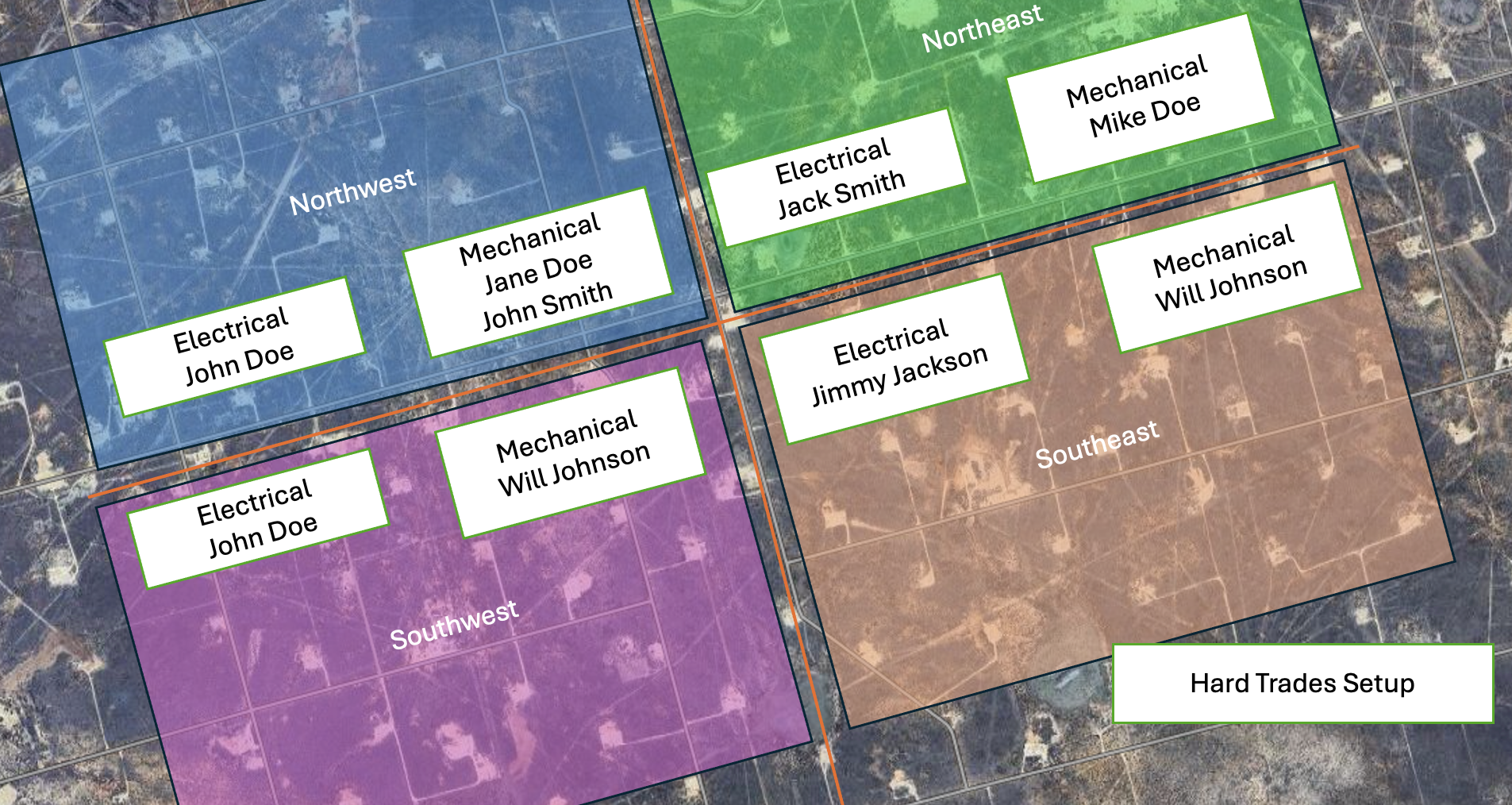
Visually Mapping Hard Trades (Electrical, Instrumentation, Mechanical, Maintenance, etc)
In this example - Northwest, Southwest, Northeast, Southeast are areas within a field
Within each area - each team is mapped along with the individual team members (i.e. users) from each team that will service/work in the specific area.
The following template can be used to complete this mapping
Field | Area | Team Name | Primary Team Member(s) | Secondary Team Member(s) |
|---|---|---|---|---|
Denver | Greeley NE | Electrical | Jack Smith | N/a |
Mechanical | Greeley NW | Mechanical | Jane Doe John Smith | N/a |
Mechanical | Greeley NW | Electrical | John Doe | Jack Smith |
Mapping teams and areas directly from a user’s profile
https://www.youtube.com/watch?v=MQBABCZVfFU&t=47sRelated Content
- Why can't I see a task? or Why is there no assignee available? Why are assets failing to load? - Troubleshooting
- What is a team?
- How do I setup a user?
- How do I change the task type AFTER creating the task?
- What is the difference between a task type attribute, a global attribute and a form attribute?
- How do I set up FSM?
- How do I set up a task type?
- How do I push open tasks to the next day?
- How do I attach metadata attributes to equipment or wells?